

It’s Friday afternoon, the review is due, and the employee roster and application export don't match. Nobody can say whether the extra accounts are contractors, former employees, or a typo. On paper, a user access review is simple: export, send, sign, file (and then nobody looks at it again until the auditor asks). With real systems and real reviewers, it stalls on unmatched accounts, silent approvers, and removals nobody checks. The short solution: match identities and assign owners first, then check permissions, verify each correction with a fresh export, and follow up on anything unresolved.
TLDR:
Pilot the review on one application before you widen scope.
Match dated exports to employee IDs and name an owner for every account.
Plan for unmatched accounts, silent reviewers, and failed removals before you build the happy path.
Verify each change with a fresh export before you mark a finding done.
What a User Access Review Covers
A user access review checks whether each identity’s existing permissions still match its business need. New-access approvals, sign-in monitoring, and broader security audits are separate activities.
Include current employees, former employees, contractors, vendors, privileged accounts, and service accounts. Assign owners by identity type:
Managers confirm job needs.
Service account owners confirm workloads still require access.
Owner unknown? Check your CMDB, the configuration data behind service management. Dependency records show which services rely on an account; ownership records name who maintains it.
Every step below follows the same pattern: an owner, an exit condition, and the evidence you keep.
Step | Owner | Exit condition | Evidence |
|---|---|---|---|
1. Scope and policy | Coordinator | Scope and exclusions approved | Policy and scope list |
2. Owners and reviewers | Coordinator | Every identity has a reviewer; nobody approves their own privileged access | Reviewer roster |
3. Collect and cross-check | Coordinator with source owners | Every account matched or flagged | Dated exports |
4. Check permissions | Managers and application owners | Retain, modify, revoke, or exception recorded with a reason | Decision log |
5. Remediate and verify | Administrators | Fresh export confirms the change | Before-and-after exports |
6. Report | Coordinator | Sign-off recorded | Report PDF and findings register |
7. Follow-up | Coordinator and security | Unresolved findings have owners and dates | Follow-up queue and exception expiry dates |
Why User Access Reviews Matter
User access reviews flag privilege creep, orphaned accounts, unnecessary admin rights, and conflicting permissions. Removing unneeded access limits what a compromised account can do. Consider an employee who transfers from finance to operations but keeps permission to edit vendor bank details, which an attacker could use to change payment destinations if the account were compromised. A careful review catches it, and the owner removes the finance permission but keeps what the new role needs.
Verizon's 2026 Data Breach Investigations Report identified credential abuse as the initial access vector in 13% of breaches. Access reviews help limit the damage compromised credentials can cause by removing unnecessary permissions, but they don't prevent credential theft.
User Access Review Frequency and PCI DSS Requirements
Pair periodic user access reviews with checks after departures, role changes, contract expirations, and security incidents. Provisioning events and sign-in events are different signals, as the SCIM vs SSO comparison shows. Review privileged access more often than standard access, scaled to risk.
PCI DSS Requirement 7.2.4 requires organizations to review user accounts and access privileges within their PCI DSS scope, including third-party and vendor accounts, at least every six months. Reviews must confirm that access matches job responsibilities, correct inappropriate permissions, and receive management acknowledgment. This requirement became mandatory on March 31, 2025. Application and system accounts fall under separate requirements, including 7.2.5.1, which sets review frequency through a targeted risk analysis. Confirm the cadence required by your applicable framework.
Step 1: Define the Review Scope and Policy
Scope the user access review before pulling exports. Cover two things:
Systems: cloud applications, directories, infrastructure, local accounts, and access outside centralized sign-in.
Review parameters: dates, identities, permissions, review period, and documented exclusions.
Your policy should then define frequency, decision criteria, evidence retention, escalation, exception expiration, and remediation deadlines. Keep execution instructions in a separate procedure, so workflow changes don’t require policy rewrites.
Step 2: Assign Owners and Prepare Reviewers
Five roles run a user access review:
Coordinator: tracks completion, so overdue decisions surface before the deadline instead of after it.
Managers: confirm business need, since they know what each person's job requires today.
Application or data owners: check permission fit, because they know what each role inside their system can actually do.
Security: oversees sensitive access, where a wrong approval costs the most.
Administrators: implement changes, so nobody else touches production permissions mid-review.
Reviewers can't approve their own privileged access, because that turns the review into self-certification.
Here is an email template to adapt:
Review [scope] at [secure review link] by [deadline]. Select retain, modify, revoke, or exception, with rationale. Escalate questions to [contact]. Unreviewed items escalate to [contact].
Step 3: Collect and Cross-Check Access Data
For your user access review, collect dated exports from employee rosters, directories, applications, and privileged-access inventories. Match employee IDs for staff and a stable unique ID for contractors, vendors, and service accounts, not names alone. Capture:
Employment status, department, and manager
Account owner and entitlements
Assignment source and available activity signals
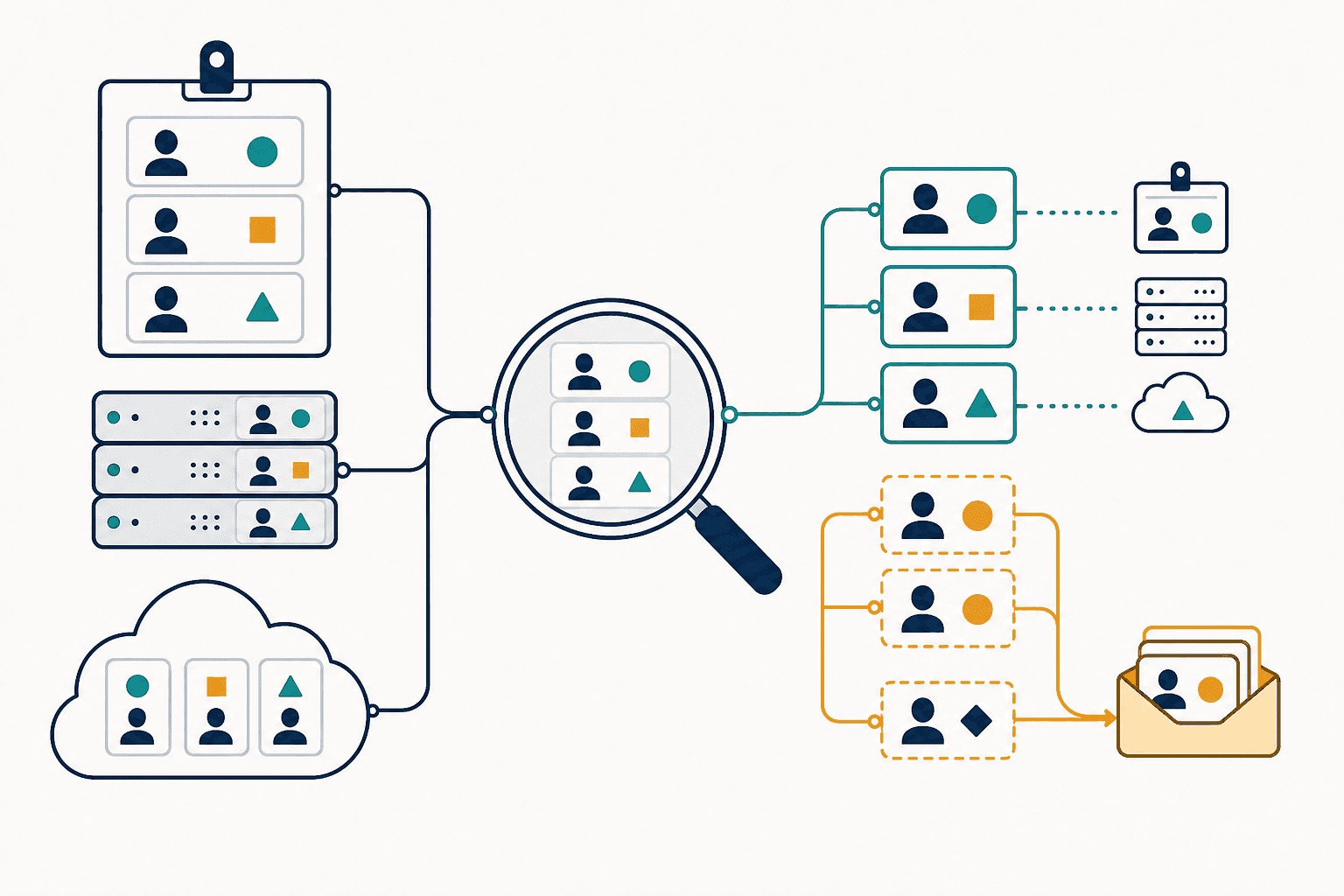
Cross-checking turns up three kinds of gaps:
Missing, duplicate, or unmatched identities: investigate with source owners.
Unlisted applications: add them to scope, including OAuth app grants, API tokens, local admin accounts, and shared mailboxes.
Inactive access: confirm business need before removing it.
Keep SCIM provisioning and SAML authentication separate when comparing sources. Provisioning records show which accounts were created or updated, while authentication logs show sign-in activity. Use both to investigate discrepancies, but verify current access against the target system.
Step 4: Check Permissions Against Business Need
Review each entitlement against business need:
Confirm identity and ownership.
Check current duties and role changes.
Inspect effective access, including inherited permissions.
Check least privilege and segregation-of-duties conflicts.
Flag former employees and expired contractors, unnecessary service accounts (the CI token nobody remembers creating), overdue temporary access, and stale group memberships, which you can clear when you automate Google Workspace group management.
Privileged accounts (production database admin, payroll, cloud root, break-glass accounts) deserve closer attention because they expose sensitive systems and data. For each entitlement, reviewers record retain, modify, revoke, or time-bound exception, plus the reason for the decision.
Could the reviewer approve or revoke this entitlement from its description alone? If the answer is no, send it to the application owner instead of letting the manager guess. A manager guessing is how rubber-stamping starts.
Step 5: Remediate Access and Verify the Result
Give every change an owner and a policy-based deadline, in this order:
Prioritize high-risk findings: Address terminated users, unexplained privileges, and sensitive access first.
Check dependencies: Confirm which systems rely on service accounts before changing their permissions.
Implement approved changes: Reduce permissions, disable accounts, remove memberships, or expire temporary access.
Consolidating IAM and ticketing tools is one option. Automation connected to your existing tools can also run approved changes directly in the identity provider, skipping the ticket queue.
Verify with a fresh system check or export that covers inherited permissions and alternate access paths. No suitable API? Track manual changes and their verification separately.
When It Doesn’t Go to Plan
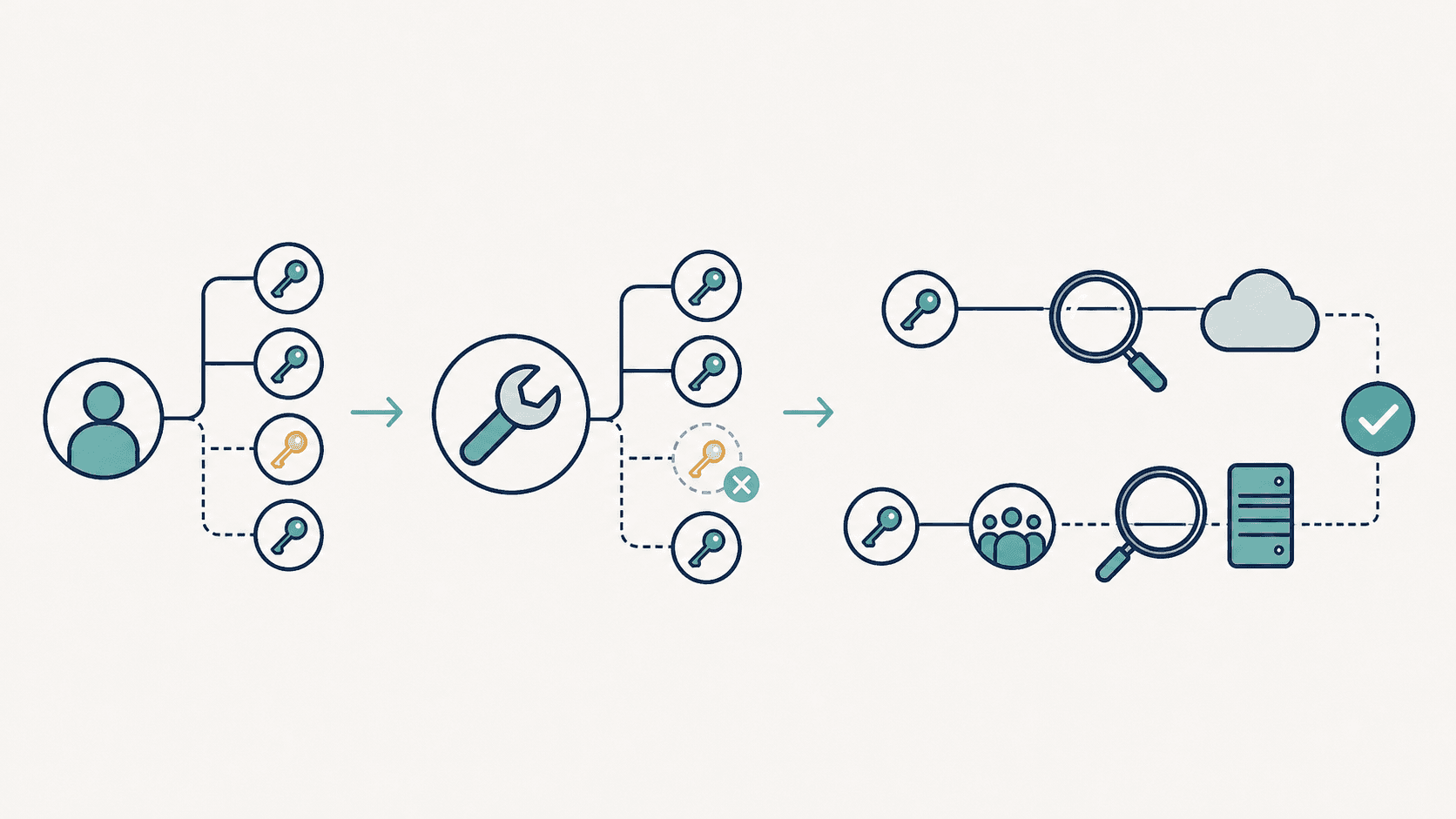
Parts of every review will break down, so decide the response before you need it:
Missing information: name the missing field or owner, mark the item as waiting, and keep the due date visible.
Unresponsive reviewer: remind them, route to a backup reviewer, then escalate to the application owner or security.
Timeout: check the target system before retrying, because a retry can collide with a change that already landed.
Failed removal: record the error, assign an owner, and move to manual handling.
Broken dependency: confirm what a service account feeds before removing access, and document the dependency if something breaks.
Step 6: Produce the User Access Review Report
Build the report PDF around an executive summary and a findings register. The summary tells leadership what you reviewed and what is still open. The register carries the detail an auditor asks for first: scope, exclusions, export dates, and how the population matching came out. After that come the reviewers, their decisions and rationale, any exceptions, remediation evidence, outstanding risks, and sign-off.
Keep the protected exports and working records as evidence. A signed report documents the review (which is where most reviews quietly stop), but it doesn't confirm that inappropriate access was removed. Track remediation separately.
So when is a finding actually done? Count it only when all five of these are true:
Decision recorded: the reviewer's choice and the reason for it are both in the register.
Change made: an administrator carried out the removal or modification, rather than just agreeing to it.
State confirmed: a fresh export or system check shows the expected result, including inherited access.
Failures resolved: any failed remediation steps have been corrected, and the final access state has been verified.
Outcome communicated: the requester or manager has been told what happened.
Step 7: Schedule Follow-Up and Measure Effectiveness
Unresolved findings go into a follow-up queue with owners. Exception expirations and the next user access review get scheduled by policy and risk. Recurring findings show where onboarding, role-change, offboarding, and access-approval procedures need revision, and you can close gaps uncovered during reviews when you automate the employee offboarding workflow.
Five metrics show whether the review worked:
Scope coverage: systems reviewed out of systems in scope.
Overdue decisions: decisions past deadline out of decisions due.
Verified fixes: verified out of required.
Decision-to-revocation time: days from decision to verified change.
Recurring exceptions: repeat exceptions out of all exceptions.
Dated records show which systems you left out and which changes haven't happened yet.
User Access Review Templates, Checklist, and Tools
A spreadsheet will carry your first campaign. It usually breaks after the decisions, when someone has to remove access and prove it happened.
User Access Review Checklist
Run through this user access review checklist before anyone signs off.
Approve scope and assign owners.
Match exports to source populations.
Record every decision, exception rationale, and verified change.
Retain evidence, schedule the next review, and give unresolved high-risk findings an owner and a deadline.
Sign-off can proceed with documented exceptions, but remediation stays open until a fresh export confirms each change.
User Access Review Best Practices and Common Pitfalls
Rubber-stamping has a boring cause: the export lists a group like SG-FIN-04, nobody can tell what it grants, and retain is the only click that doesn't break payroll (no one wants to do that). Before the campaign, translate entitlement names into plain language, re-pull stale exports, and block bulk approve-all on privileged access. Then pilot on one application and run four cases through it: normal, ineligible account, timeout, and failed removal. And automate software access requests to keep permissions current between reviews.
User Access Review Template for Excel
For a small pilot, start with one row per entitlement. Record the export date, system, identity, entitlement, reviewer, decision, rationale, action owner, due date, and verification date. Add a sign-off column if your framework expects management acknowledgment. For Active Directory or hybrid Microsoft Entra, also track privileged groups, nested memberships, service-account owners, and the authoritative source, which identity provider integrations make easier to pull.
How to Assess User Access Review Tools
When a spreadsheet stops being enough, ask each type of tool one question:
Approach | Capability to check |
|---|---|
Spreadsheets (e.g., Microsoft Excel, Google Sheets) | Effort per campaign and how evidence is retained. |
Directory-native (e.g., Microsoft Entra access reviews) | Review types covered (groups, apps, roles, access packages), systems outside the directory, and the required license tier. |
Access governance (e.g., SailPoint) | Effective access visibility, connector scope, and pricing. |
Open-source (e.g., Evolveum midPoint) | Who maintains it (license, permissions, and support). Apply the same checks to free tools from GitHub or Reddit. |
Workflow automation (e.g., Ravenna) | Identity provider changes it can trigger, approval routing, and failed-step reporting. |
Pilot whichever you pick the way you'd pilot the review: test discovery, assignment, remediation, and verification separately.
How Ravenna Supports Access Remediation Between Reviews
A reviewer marks a contractor’s admin role for revocation on Tuesday. By Friday, it is still live, sitting in someone’s queue. Here is how the same decision moves once a revocation workflow exists for that role.
The decision reaches Ravenna, a Slack- and Teams-native workflow automation platform, as a chat request or a webhook trigger. An AI agent asks for any missing details in that thread, then the change routes through Approval Rounds: manager first, then security, while skip conditions auto-approve low-risk requests. Once the request is approved, Ravenna runs the change in the connected identity system, such as Okta or Microsoft Entra. Temporary access carries an end date through time-bound access policies, so it expires without a follow-up.
If a step fails, execution history shows where the workflow stopped. An administrator can retry the failed step while reusing successful outputs from earlier steps. Teams can rehearse the whole workflow in Dry Run mode first, which keeps duplicate provisioning and stray identity-system writes out of production. A fresh access export then confirms the change took effect.
Plenty stays manual. Reviewers still decide what to retain or revoke, someone has to build the revocation workflow for each role before the first review, and systems without a usable API still need manual changes with separate verification. Ravenna is also a different fit for teams that need deep ITIL process compliance, formal change advisory boards, or on-premises deployment. A spreadsheet or dedicated review tool can still track decisions and evidence while Ravenna runs the approved changes.
Final Thoughts on Access Review Follow-Through
A review that ends at the signature has only documented a decision. It's finished when a fresh export shows the access is gone. Keep every unresolved finding in a queue with a name and a date beside it. This week, pick one application, pull the export, and match it against the roster. Then, talk through access remediation with us as you plan your next review.
FAQ
Should you keep your user access review in Excel if you already use Ravenna?
Yes, keep it while it gives you a controlled record of scope, decisions, exceptions, and evidence, and let Ravenna's workflow automation platform run the approved changes it links to. Move to dedicated review software once reviewers start missing deadlines. By then, the sheet is hiding risk instead of recording it.
What should you do if Ravenna completes some access removals but a later workflow step fails?
Leave the finding open and read Ravenna's execution history before retrying. The run can resume from the failed step while reusing successful outputs. Afterward, verify final permissions in each affected system. Closing it early leaves access in place that your report says is gone.
How do you avoid double-counting identities in an Active Directory and Microsoft Entra user access review?
Link related accounts to one identity record, but keep a separate row for each system's entitlements and remediation evidence, recording account ID, linked cloud identity, authoritative source, and remediation location. Count identities, accounts, and entitlements separately. Counting accounts as identities makes coverage look better than it is.