

Most teams find Slack's reminder feature after months of manually pinging people or maintaining separate task lists that nobody checks. The /remind command schedules notifications for yourself, specific teammates, or entire channels without leaving your workspace. Once you know the syntax, you can set up everything from one-off nudges to monthly recurring alerts in about five seconds.
TLDR:
Use /remind me [task] [when] for personal notifications or /remind #channel [task] [when] for teams
Slack accepts natural language like "tomorrow at 2pm" or "every weekday at 9am" for recurring reminders
View all reminders with /remind list and edit or delete them through the three-dot menu
Reminders send notifications but don't complete work - Ravenna automates full IT workflows from request to resolution across your SaaS stack
What Are Slack Reminders and Why You Need Them
Slack reminders schedule notifications for yourself, teammates, or channels without switching apps. You set time-based prompts in the same space where conversations happen, so context stays visible when the reminder fires. Workplace productivity tools like Slack provide insights into how teams use their tech stack, and reminders are one of the features that help maintain task visibility across distributed workflows. 40% of paid Slack teams use workflow features weekly. Reminders reduce the friction of tracking follow-ups across separate tools.
You can create three reminder types:
Personal reminders notify only you.
Channel reminders alert everyone in a channel.
Recurring reminders repeat on schedules you define, from daily check-ins to monthly reviews.
Each type of reminder keeps work visible where your team already operates.
How to Set a Personal Reminder in Slack
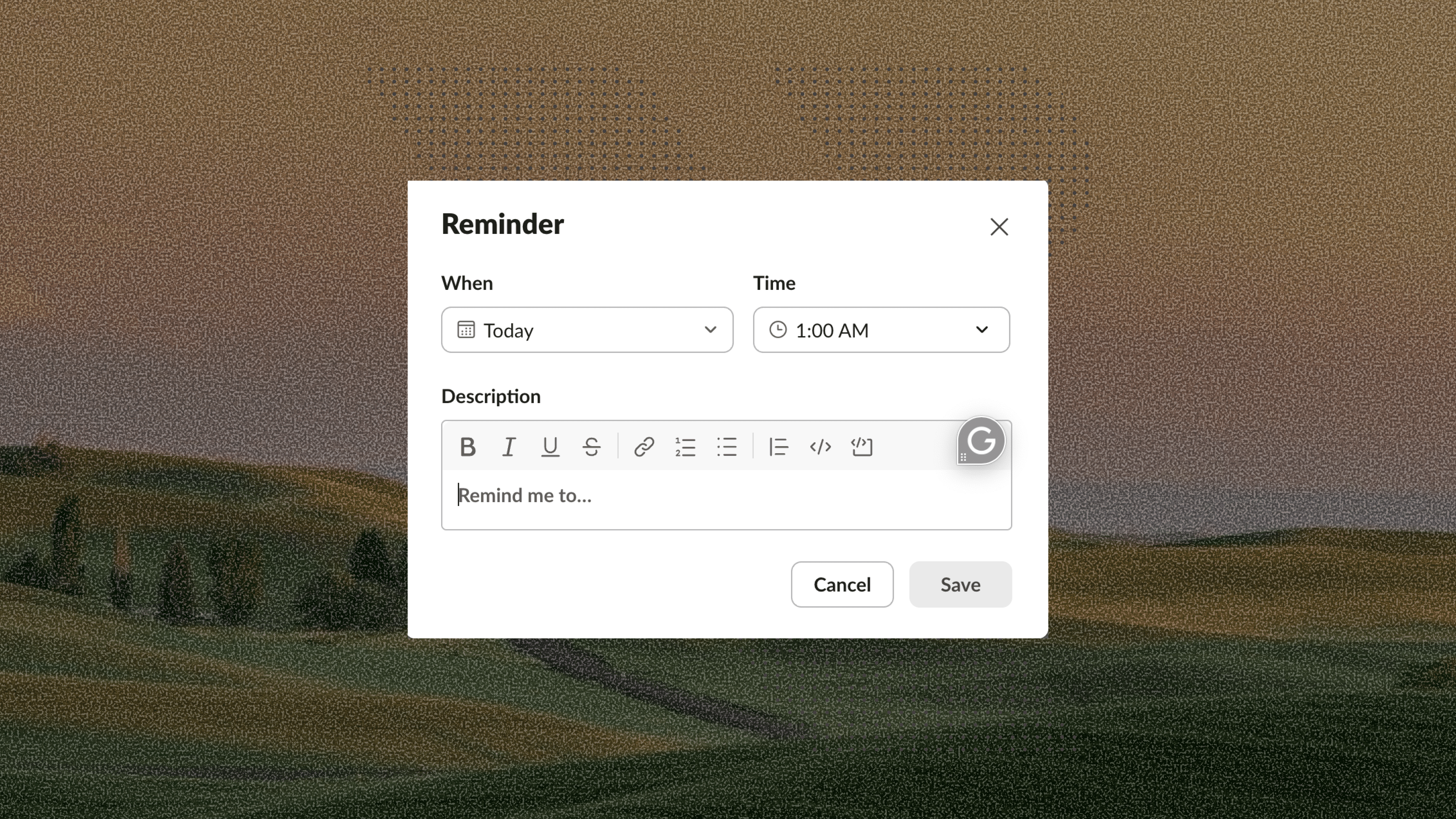
To set a personal reminder in slack, type /remind me followed by your task and when you want to be reminded. The syntax is /remind me [task] [when]. Here is an example: /remind me to review the budget tomorrow at 2pm or /remind me to file expense report in 3 hours.
Slack accepts natural language like "next Monday," "Friday at 9am," or "in 30 minutes." You'll see a confirmation before the reminder saves. At the scheduled time, Slackbot sends you a private message with your reminder.
How to Set a Reminder from a Message
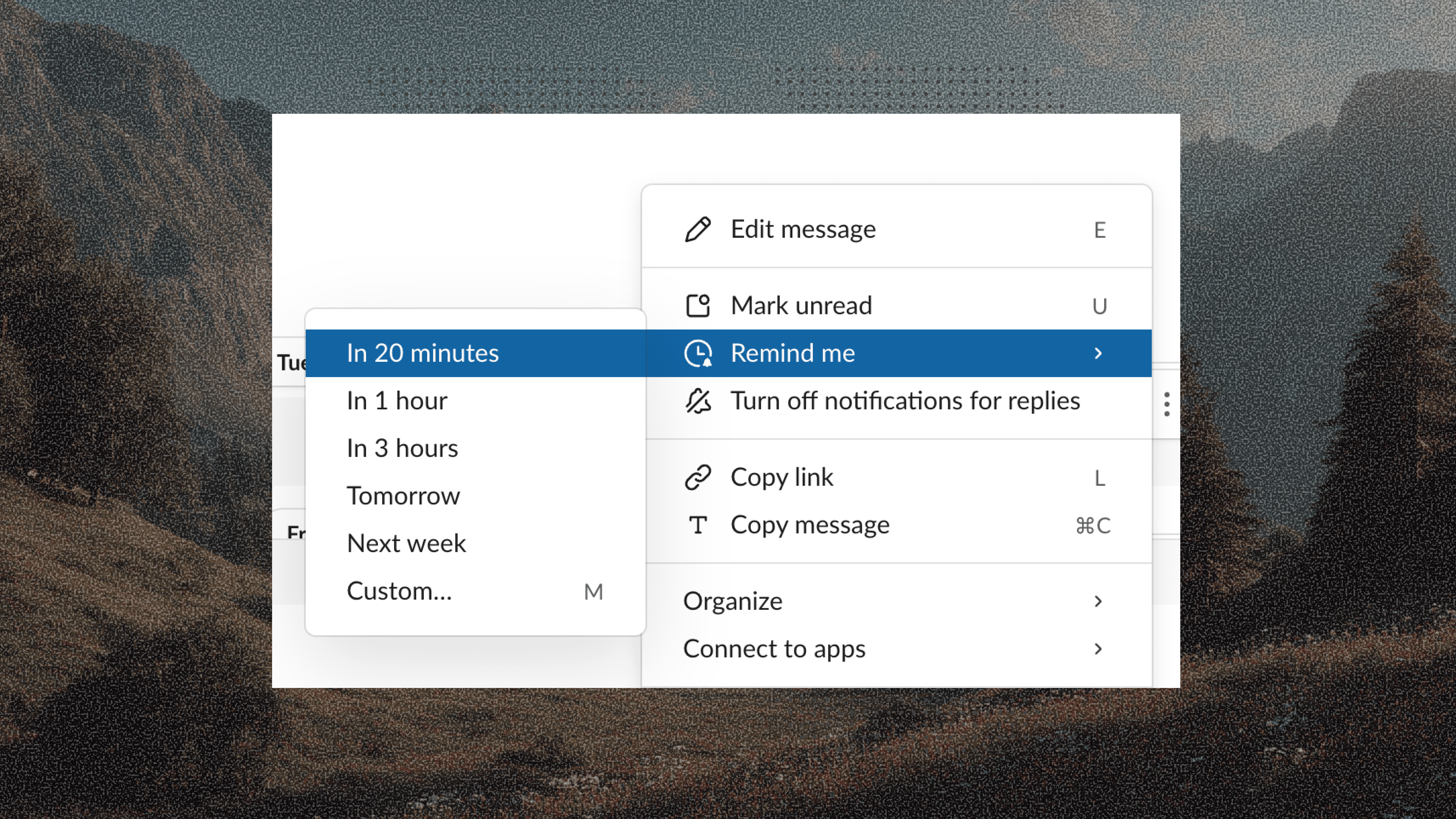
To set a reminder about a message, hover over any Slack message and click the three-dot menu icon. Select "Remind me about this" from the dropdown. You'll see preset time options: 20 minutes, 1 hour, 3 hours, or tomorrow. Pick one and the reminder saves instantly. For a custom time, choose "Custom" and enter your preferred date and time.
When the reminder triggers, Slackbot sends you a direct message with a link back to the original conversation. Click through to see the full thread context.
How to Set Reminders in Direct Messages
Direct message reminders notify specific people privately instead of broadcasting to channels. Type /remind @username [task] [when] to send someone a personal reminder only they'll see.
For example, you can use /remind @sarah Review contract tomorrow at 11am when you need someone to follow up on confidential work. The reminder appears as a Slackbot message in their DM thread, invisible to other team members. DM reminders work well for sensitive tasks like performance reviews or one-on-one follow-ups where channel visibility would be inappropriate, keeping your internal helpdesk organized.
How to Set a Channel Reminder in Slack
To set a channel reminder, replace "me" with #channel-name in the remind command to notify everyone in a channel. The syntax is /remind #channel-name [task] [when]. Here's an example: /remind #marketing Weekly standup every Monday at 10am to create a recurring team notification. Or use /remind #engineering Code freeze tomorrow at 5pm for a one-time alert. Channel reminders appear as messages from Slackbot visible to all members, making them useful for approval workflows that require team visibility. Everyone sees the notification at the same time.
You need proper permissions to set channel reminders. In most workspaces, any member can create them, but admins can restrict this capability.
How to Set Recurring Reminders in Slack
Recurring reminders are great because they happen at a specific interval. To set a recurring reminder, add "every" followed by your frequency to make any reminder repeat. The syntax is /remind [who] [task] every [frequency]. Here's an example: /remind me standup report every weekday at 9am for Monday through Friday reminders. Use /remind #team sprint review every 2 weeks on Friday at 3pm for biweekly notifications.
Slack recognizes these recurring patterns: "every day," "every weekday," "every Monday," "every 2 weeks," "every month," and "every Monday and Thursday." You can combine frequencies with specific times, like "every month on the 15th at noon."
Advanced Recurring Reminder Examples
Slack also supports more advanced recurring reminders. Here are some examples that shows how flexible Slack reminders can be:
First Monday of each month: /remind #team Board report review every month on the first Monday at 10am
Last day of the month: Slack doesn't support "last day" natively. Use /remind #finance Month-end close every month on the 28th at 4pm and manually adjust for 30 or 31-day months.
Every other week (biweekly): /remind me Submit timesheet every 2 weeks on Friday at 5pm
Work days only: /remind #support Check ticket queue every weekday at 9am excludes weekends automatically.
Multiple days per week: /remind me Team sync every Monday and Wednesday at 2pm
Just remember that Slack calculates dates from when you create the reminder. A biweekly reminder set on January 5th will fire every two weeks from that date, not on a fixed calendar schedule.
Understanding Slack Reminder Date and Time Formats
As you start to think about using this powerful Slack feature, you need to keep in mind how Slack handles date and time formats.
First, Slack parses dates and times using natural language, so "tomorrow at 2pm" and "2:00 PM tomorrow" both work. You can write "next Friday," "June 15," or "in 4 days" and Slack calculates the exact trigger time.
Keep in mind that reminders use your workspace timezone by default. If you're in Pacific time and set a reminder for 9am, it fires at 9am Pacific. When traveling across timezones, reminders stay anchored to your workspace setting unless you update your Slack timezone in preferences.
Finally, Slack accepts 12-hour format (2pm, 9:30am) and 24-hour format (14:00, 09:30). Dates work as month/day (3/15) or written out (March 15). Mixing formats like "3/15 at 2pm" or "March 15 14:00" both parse correctly.
The table below provides an overview of the different reminder types, command syntax, examples, and when it might best be used.
Reminder Type | Command Syntax | Example | When to Use |
Personal reminder | /remind me [task] [when] | /remind me review budget tomorrow at 2pm | Private notifications for your own tasks and follow-ups |
Channel reminder | /remind #channel [task] [when] | /remind #marketing weekly standup every Monday at 10am | Team-wide notifications visible to all channel members |
Direct message reminder | /remind @username [task] [when] | /remind @sarah review contract tomorrow at 11am | Private reminders for specific teammates on confidential tasks |
Recurring daily | /remind [who] [task] every day at [time] | /remind me check dashboard every day at 9am | Daily tasks that repeat seven days per week including weekends |
Recurring weekdays | /remind [who] [task] every weekday at [time] | /remind #team standup every weekday at 9:30am | Work-day tasks that automatically skip Saturday and Sunday |
Recurring weekly | /remind [who] [task] every [day] at [time] | /remind me submit timesheet every Friday at 4pm | Weekly tasks that repeat on the same day each week |
Recurring biweekly | /remind [who] [task] every 2 weeks on [day] at [time] | /remind #eng sprint planning every 2 weeks on Monday at 10am | Tasks that repeat every other week on a fixed schedule |
Recurring monthly | /remind [who] [task] every month on [date] at [time] | /remind #finance invoicing every month on the 1st at 9am | Monthly tasks tied to specific calendar dates or week patterns |
How to View and Manage Your Slack Reminder List
Once you have set reminders in Slack, you may have need to review them. To see your reminder list, type /remind list to see all your active reminders in one view. Slack displays upcoming reminders in chronological order with their scheduled dates and times. The list shows both personal reminders and any channel reminders you created. Each entry includes what you're being reminded about, when it will fire, and whether it repeats. Click any reminder to edit or delete it directly from this view.
For today's reminders only, use /remind list today to filter down to notifications scheduled within the next 24 hours.
How to Edit Reminders in Slack
Of course, once you set a reminder, it's not etched in stone. You can edit those reminders as well. To do so, type /remind list to view all active reminders. Click the three dots next to any reminder and select "Edit reminder" to modify the text, timing, or recurrence pattern.
The mobile experience works the same. Open /remind list in the Slack app, tap your reminder, and choose edit. You can't modify reminders directly from notifications, only through the reminder list interface.
How to Delete a Reminder in Slack
Finally, you may need to delete your reminders from time-to-time. That's easily handled through Slack as well. To delete a reminder, open your reminder list with /remind list and click the three dots next to any reminder you want to remove. Select "Delete" and confirm when prompted. The reminder disappears immediately and won't fire again.
For channel reminders, you need to be the person who created the reminder or have admin permissions to delete it. Personal reminders can only be removed by you.
Completed reminders stay in your history temporarily but don't clutter your active list, similar to how self-service IT support keeps request histories organized. Slack automatically archives old notifications after they fire.
The /remind Command: Complete Syntax Guide
At the end of the day, the Slack /remind feature follows a basic syntax pattern: /remind [who] [what] [when].
The "who" parameter accepts me for personal reminders, @username for direct messages, #channel-name for channel notifications, or @here and @channel to notify active members.
The "what" parameter is freeform text describing your task. The "when" parameter accepts natural language (tomorrow, next Friday, in 2 hours), specific dates (March 15, 6/20), times (2pm, 14:30), or combined formats (June 1 at 9am). Add every before time expressions for recurring reminders: every Monday, every weekday, every 2 weeks.
Automating Beyond Reminders with Ravenna
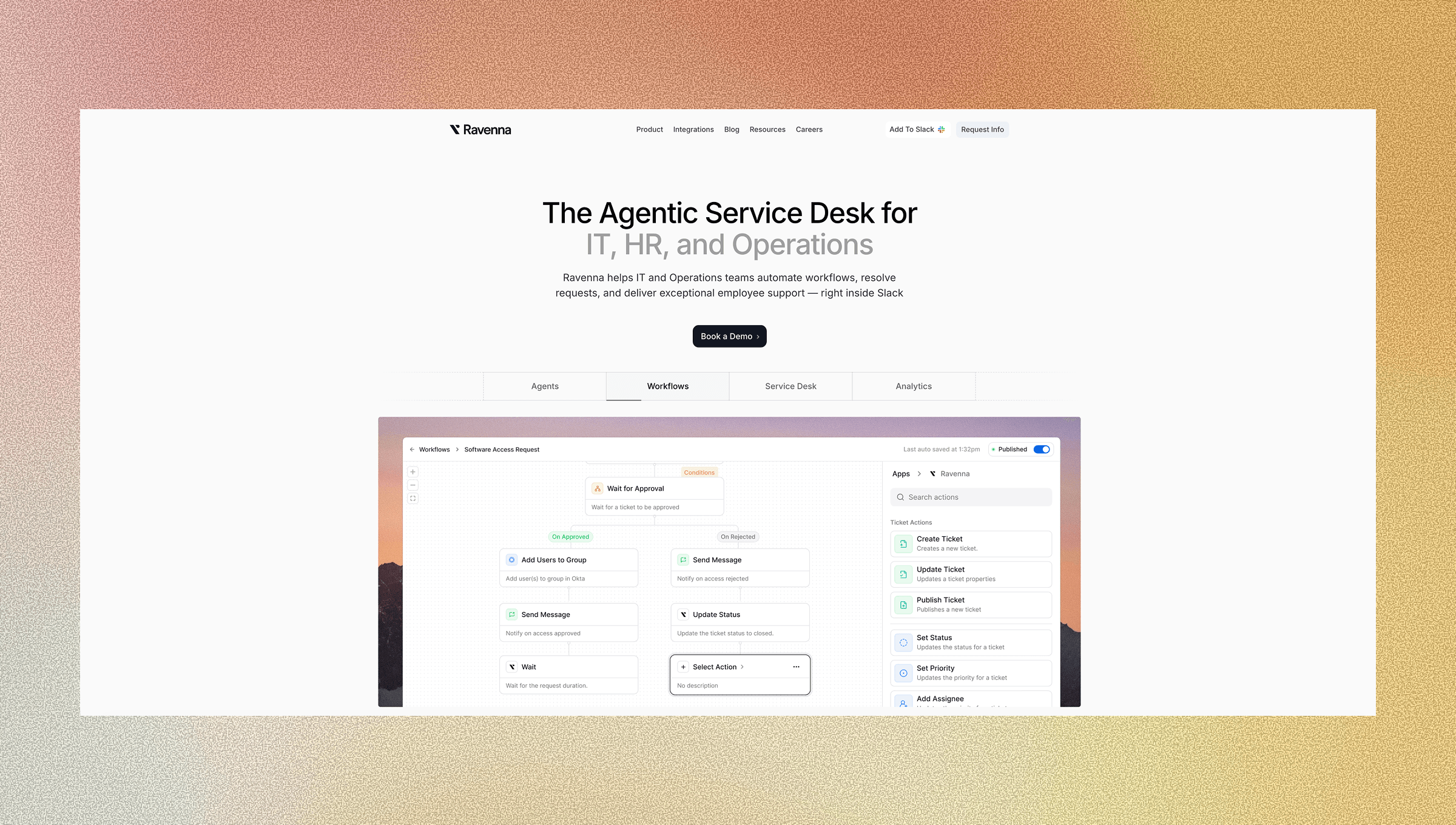
Slack reminders send notifications, but they don't complete the work. When your IT team gets reminded about an access review, someone still needs to manually check permissions, update systems, and document changes with a help desk solution. Ravenna runs end-to-end workflows that execute actions across your tools to automate help desk operations. An access request triggers an automated workflow: intake form, approval routing, provisioning in Okta and Google Workspace, and notification, all without manual steps. The request becomes completed work, not another task in someone's queue.
For teams already using Slack as their work hub, Ravenna adds an automation layer for IT and Ops.
Final Thoughts on Slack Reminder Commands
The Slack remind command keeps tasks visible, but Ravenna handles the execution layer beneath those notifications. When reminders pile up for the same repetitive workflows, that's your signal to automate the entire process. You'll shift from managing notifications to running work that completes itself.
FAQ
How do I set a Slack reminder that repeats every weekday but not weekends?
Use /remind me [task] every weekday at [time] to schedule Monday through Friday reminders that automatically skip weekends. For example, /remind me standup report every weekday at 9am fires only on work days.
Can I edit a Slack reminder after I've already created it?
Type /remind list to view all active reminders, then click the three dots next to any reminder and select "Edit reminder" to change the text, time, or recurrence pattern.
What's the difference between channel reminders and DM reminders in Slack?
Channel reminders use /remind #channel-name and notify everyone in that channel publicly, while DM reminders use /remind @username and send private notifications only to that specific person.
How do I create a Slack reminder for the first Monday of every month?
Use /remind [who] [task] every month on the first Monday at [time] to schedule first-Monday reminders. Slack automatically calculates the correct date each month.
When should I consider workflow automation instead of just setting Slack reminders?
When your reminders consistently trigger manual work across multiple systems - like access requests that require approvals, provisioning in Okta, and status updates - automation handles those complete workflows instead of just notifying someone to do the work manually.