

For many IT teams, one of the most tedious but essential chores in Slack administration is making sure the right people have access to the right channels. When your company grows beyond a handful of channels and a couple dozen team members, manually adding users to the right Slack channels becomes slow, inconsistent, and error-prone.
Can we automate channel assignments based on Slack groups so that adding someone to a user group automatically adds them to a set of channels?
Let’s unpack this using real examples and Slack’s native capabilities.
TL;DR
Slack can automatically add users to public and private channels using user group default channels.
Syncing from identity systems like Okta into Slack user groups often solves many onboarding needs.
Native Slack automation is best for static mappings of groups to channels.
Custom workflows become necessary when access rules are conditional or require logic outside Slack.
A Common Question: “Can We Automate Slack Channel Access by Group?”
Slack remains one of the most widely used team collaboration platforms in the world, with 47.2 million daily active users and more than 750,000 organizations relying on it for internal communication as of 2025, highlighting why efficient onboarding and access control matter so much at scale.
Every IT ops team eventually hits the same question: “When I add someone to a Slack user group, can they automatically be added to the right channels?” That idea sounds simple in theory, but it brings up two key pieces of context. First, teams usually manage access via an identity provider like Okta, which becomes the source of information for roles, teams, and attributes. Second, admins want to reduce the manual steps between onboarding someone in Okta and ensuring they join the right conversation channels in Slack.
Consider this scenario. Sydney, an IT manager at a tech scale-up, recently asked exactly this:
“If I push my HR and Engineering groups from Okta into Slack, can Slack itself join those users to their respective channels automatically?”
The answer depends on how the groups and channels are defined, and on whether you stick with Slack’s native features or look to extend them with custom automation.
In exploring this scenario, we’ll surface what Slack supports natively, and when you might need to lean on external workflows for more complex needs.
The Workflow the Customer Had in Mind
Let’s map out the exact behavior most teams actually want when they talk about automating Slack channel access.
The desired behavior
In Sydney’s ideal world, the moment someone gets added to a Slack user group, such as an “@engineering” group, they would automatically join a curated set of public channels like #engineering, #onboarding, and #tools-alerts. These default channels place every member of a given role or team by default.
This setup means admins don’t repeat the same manual steps thousands of times. The goal is clear: add users to Slack channels automatically as part of group membership changes.
Where the group comes from
In most internal ops environments, Slack doesn’t exist in a silo. Organizations may also use an identity provider (IdP) like Okta to manage users, roles, and team affiliations. The typical pattern looks like this: someone gets added to a team or attribute in Okta, Okta syncs that into a Slack user group, and the Slack group’s membership becomes the basis for channel access.
That pattern is especially common in growing orgs where roles, locations, and even contract types affect who needs access to what. Syncing user groups from Okta to Slack lays the groundwork for Slack user groups automation that aligns with existing identity logic.
What Slack Already Supports Out of the Box
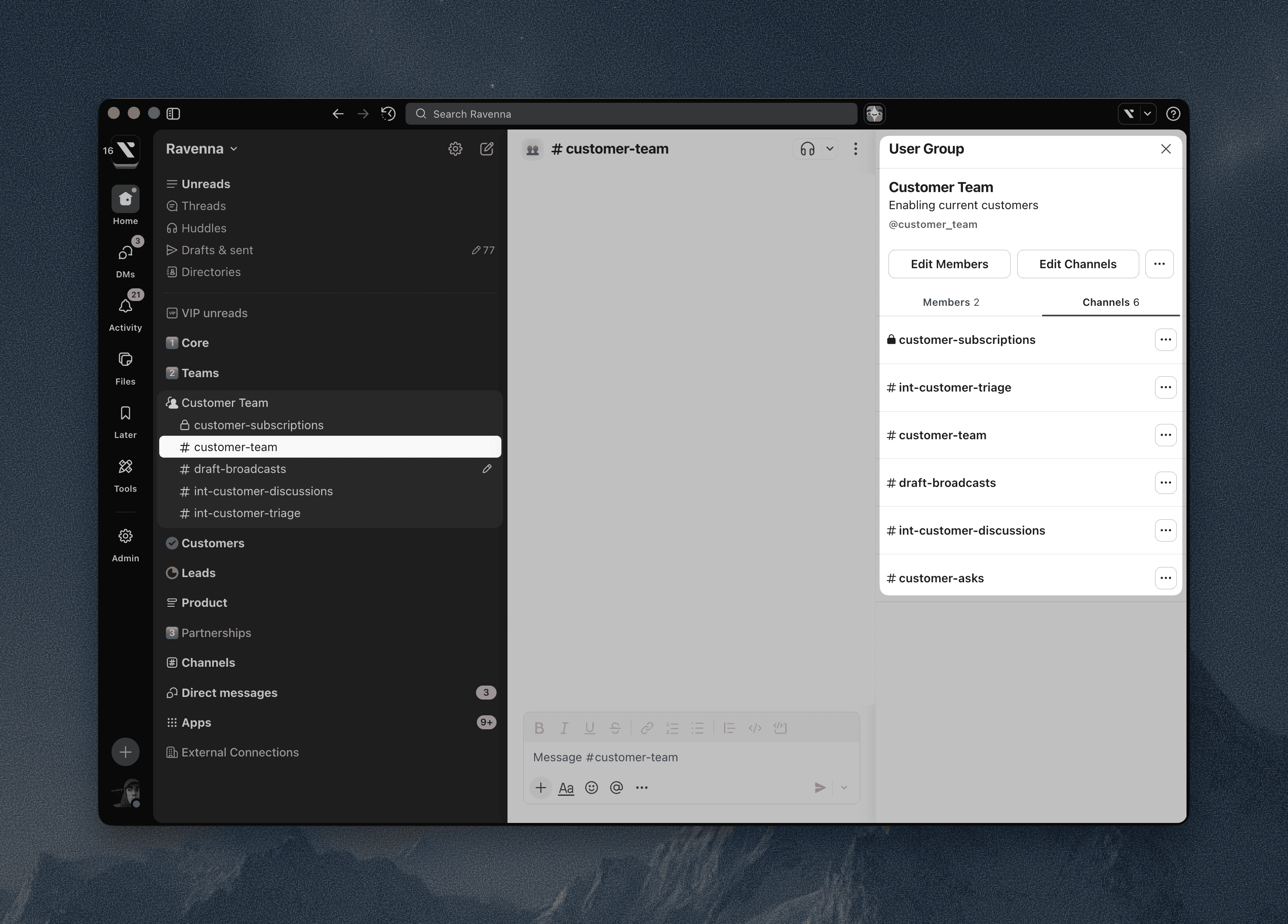
Understanding what Slack handles natively helps IT teams avoid reinventing the wheel or building brittle scripts that break with every API change.
Default channels for Slack user groups
Slack’s user groups feature allows admins to define default channels that members of that group will be added to automatically when the group membership changes. This means the most common use case: adding a person to a team and immediately provisioning them into a standard set of channels, is supported directly by Slack’s UI and API.
Slack also offers a separate, workspace-level setting that applies to all new members, regardless of group membership. Workspace admins can define a set of default channels that every new user joins automatically when they’re added to Slack. This is often used for company-wide channels like #announcements or #help, and works independently of user groups. While this doesn’t replace group-based channel assignments, it complements them by ensuring every new joiner lands in a shared baseline set of conversations.
Workspace owners and admins can set these defaults at group creation or in the group’s settings later. Once configured, Slack handles the mechanical part of inviting users to those channels based on group membership.
It’s worth stressing, however, that this is a static mapping: the same channel set applies every time, and the logic lives entirely in Slack.
Shared sidebar sections
Another native feature worth calling out is shared sidebar sections, specifically shared group sidebar sections, which are tightly coupled to Slack user groups. When creating or editing a user group, admins can group default channels into a shared sidebar section and enable a toggle so that section automatically appears for every group member. As users are added or removed from the group, both their channel membership and the sidebar section stay in sync, giving everyone in the group a consistent, up-to-date view of the same channels.
It’s worth distinguishing this from standard sidebar sections, which individual users can create and optionally share with teammates. Those shared sections don’t stay automatically updated and aren’t tied to group membership.
Together with default channels, this helps deliver a cleaner onboarding experience and reduces the cognitive load on new users when they join Slack.
When Native Slack Automation Is Enough
Slack’s built-in user group default channels solve the most common cases of channel assignment automation. If your needs fall into one of the following categories, you’re often best off keeping it simple:
You have static group-to-channel mappings that don’t change often.
You don’t need conditional logic (e.g., only add someone to a channel if they are in Eastern Time and an engineer).
Your entire logic resides within Slack, with no dependencies on other systems.
Native Slack features excel here because they’re supported directly in the admin UI, don’t require custom scripts, and rely on first-party behavior that Slack maintains over time. For simple onboarding flows, this keeps access rules easy to understand and easy to audit.
If all you need is to “add users to Slack channels automatically” when they join a group, this setup checks a lot of boxes without added complexity.
When Teams Need A Custom Workflow Instead
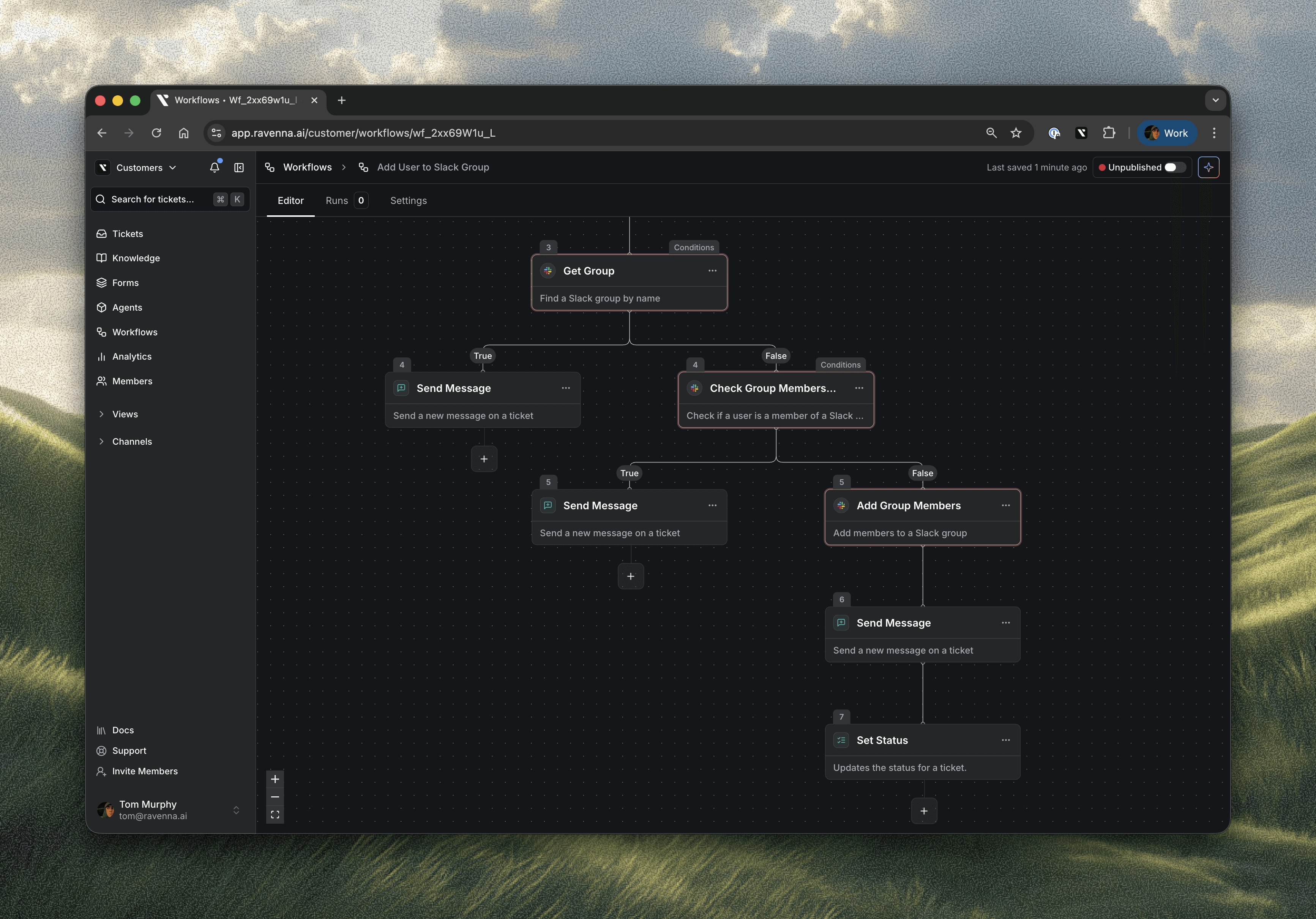
But real-world IT teams often hit scenarios that extend beyond static mappings; situations where Slack’s native automation doesn’t quite cut it.
Conditional or dynamic channel rules
Consider a scenario where you want to add people to different sets of channels based on multiple attributes: role, seniority, location, or team. For example, a developer in London should join a different set of channels than a developer in Sydney, even though both belong to “Engineering.” Static mappings quickly become unmanageable here.
This is where you need custom workflows: external automation engines that can interpret multiple signals and act accordingly. They let you codify logic like “if a user’s department is X and their location is Y, then add them to these channels, else add them to those channels.”
Temporary access is another common need: contractors might need access to certain channels for a fixed period, then be removed later. Slack’s native user group defaults don’t support time-bound or conditional channel membership, which is where external workflows can help enforce expiration or additional logic.
Multi-system triggers
Sometimes Slack group events aren’t the ONLY trigger you care about. Maybe a ticket in your HR system triggers Slack channel access once approved. Or perhaps a badge swipe event in your workplace system should grant access to an internal communications channel.
In these situations, you’re operating across identity, ticketing, and HR systems. Simple Slack user group automation doesn’t cover these surface interactions. A custom orchestration engine can watch for events across systems and then perform the necessary Slack operations in response. This is where automation adds the most value: tying external triggers to Slack behavior.
The Takeaway for IT Teams
If your goal is to automate channel assignments based on Slack groups in a straightforward way, it’s important to recognize what Slack already gives you and what it doesn’t. Slack’s native default channels for user groups already do a lot of the heavy lifting for static onboarding needs without requiring additional tools or scripts.
Beyond that, look at your complexity surface: conditional logic, multiple systems, and dynamic access requirements are all situations where a custom workflow makes sense. In these cases, external automation extends Slack’s native capabilities and lets you model real business logic rather than brittle, manual processes.
This approach lets your automation reduce decisions for your team, not add more tools to manage, ensuring consistency, clarity, and scale in your Slack channel access strategy.
When teams outgrow static group-to-channel mappings and need conditional, cross-system logic, workflow automation becomes a natural next step. If you want to see how teams handle Slack access alongside identity, approvals, and onboarding workflows in one place, you can schedule a demo to explore what that looks like in practice.
FAQs
Can Slack automatically add users to channels based on group membership?
Yes. Slack’s user groups feature lets admins assign default channels that members will be added to automatically when they join the group.
Does this work for private channels as well?
Yes, Slack user groups can include private channels as default channels if the person configuring the group is already a member of those private channels. When set up this way, users added to the group are automatically invited to the associated private channels.
How do I sync Okta groups into Slack user groups?
You typically configure a SCIM or provisioning integration in Okta to push group membership into Slack user groups, and then Slack’s default channel settings handle the access. The specifics vary by IdP setup.
Can I use Slack workflows to make channel assignments more dynamic?
Slack’s native workflow builder does support basic conditional branching within Slack. However, it doesn’t extend well to more complex logic that depends on multiple attributes, time-based rules, or events from external systems. For teams that need channel access decisions to reflect identity data, approvals, or cross-system triggers, an external automation layer is usually required.
What’s the difference between Slack default channels and custom automation?
Default channels are static lists tied to a user group. Custom automation lets you inject logic, timing, and multi-system triggers into channel assignments, enabling more flexible, conditional behavior.