

TL;DR
Jira turns a request into a record with an owner, status and history; Jira Service Management adds service-desk features.
For a new ticket, choose the right space and work type, then provide enough detail for someone to act.
Use agreed priorities and clear workflow states so the queue shows who owns each request and what happens next.
Evaluate the configuration work and fit with your existing tools, including how employees will submit and follow up on requests.
What is a Jira Ticket?
A Jira ticket is a single unit of work tracked in Jira, such as a bug, task, story or service request. Atlassian now calls tickets work items. Each one has a key like IT-142, a summary, a status, an assignee, a priority and a full activity history.
A Jira ticket is a digital record created to track one issue, request or piece of work, and everything about that task lives on it. Teams create them for bug tracking, feature requests and IT support queries. The reason it beats a chat message is that it carries state: who picked it up, what they tried, and how long each step took.
Most guides to the Jira ticketing system describe a product that doesn’t use those words anymore. Atlassian renamed an issue to a work item in March 2025, then renamed a project to a space that September. Almost nothing written about Jira ticketing has caught up. So you’ll open Jira, go looking for the things every article told you to expect, and not find them.
Here’s the product as it stands in 2026: the vocabulary, the features, the current prices, and where Jira stops fitting.
Why Do Teams Need Ticketing Systems?
Support requests arrive as messages, and messages disappear; somebody DMs the person who fixed it last time, or drops it in a channel where it scrolls past by lunch. Nobody can tell you afterwards how many there were, or who dealt with them.
A ticketing system turns each request into a record with an owner, a status and a history. That’s the whole point, and queues, SLAs, automation and dashboards are just machinery stacked on top of it. The trade-off is friction, because somebody fills in a form and somebody maintains the workflows. That trade-off decides whether Jira is the right size for your problem.
What is Jira?
Jira is Atlassian’s ticketing and work tracking platform. It started in 2002 as a bug tracker, and it’s grown into a flexible system used by Agile teams, IT help desks and support teams. The strength is still the same one; task management, progress tracking and prioritization in one place, wired into Bitbucket and Confluence.
Two packaging changes matter before you start shopping, because both break older comparison articles. Jira Software and Jira Work Management are one product now, called Jira, after Atlassian merged them in May 2024. Atlassian also sells bundles called Collections rather than standalone products, so the ticketing product you want, Jira Service Management (JSM), arrives inside the Service Collection.
One older name to recognize. JSM was Jira Service Desk until November 2020, and you’ll still find that name in job postings and internal wikis.
What Does Jira Call Tickets Now?
This trips up everyone new to Jira in 2026, so it’s worth getting straight first.
You’ll read this | Jira says | When it changed |
|---|---|---|
Issue | Work item | Announced November 2024, rolled out from March 2025 |
Issue type | Work type | With the above |
Project | Space | Announced June 2025, Free and Standard from late September 2025, Premium and Enterprise from October |
Three words end up pointing at one object; work item is what the interface says, issue is what the API and JQL say, and ticket is what your team says out loud. Nothing underneath moved. Atlassian’s announcement put it plainly: “There are no changes to existing APIs; they will continue to function as usual with the term ‘issue.’” Same for spaces, where project = X still works in JQL and your boards and permissions are untouched.
Two things to watch. The rename covered the category words and not the individual work types, so Epic, Story, Task, Subtask and Bug are all still called exactly what they were. And if you’re updating internal docs, use work item in anything a person reads and leave issue in anything a machine reads; Atlassian hasn’t finished the migration in their own documentation either.
How Does Jira Work?
When you log into Jira the board splits work into three columns; To Do holds what’s waiting, In Progress what’s being worked on, and Done what’s closed. You drag items between columns as they progress, and you add comments or attachments to keep context on the record instead of in someone’s memory.
Creating work items runs through the Create button in the top bar, which opens a compact form that expands when you need it. Atlassian rebuilt that dialog in the 2026 Summer Release, so click-paths written before July 2026 won’t match your screen. One thing to know: the space you pick decides which work types and fields you get. Picking the wrong one is the most common beginner mistake in the product.
How Do You Create a Jira Ticket?
1. Click Create in the top bar. A compact form opens, and it expands to the full field set when you need it.
2. Pick the space. This is the field older guides call the project, and getting it wrong is the mistake beginners make most.
3. Pick the work type. Bug, Task, Incident, Service Request. The options depend on the space you chose.
4. Write the summary. One line, specific, with the noun up front. “Checkout page 500s on Safari” beats “Bug in checkout”, because nobody reads past the first six words in a queue view.
5. Fill in the description and the fields that matter. Skip the rest. A ticket with 11 populated fields and a vague description is worse than the other way round.
Most tickets in a working service desk never touch that dialog, though. The customer portal is the default route in JSM, and email is the lowest-friction option for anyone non-technical, because you just send to a monitored address. Atlassian’s chat integration lets people raise a ticket by reacting to a Slack message with a ticket emoji, and approvers can approve or deny straight from a DM. There’s also an embeddable widget, the virtual service agent on Premium, and the REST API for anything programmatic.
When Create doesn’t work it’s almost always permissions. Check three things in this order: whether you have the Create Issues permission in that space, whether you’re a licensed agent rather than a customer, and whether the work type you want is in that space’s work type scheme. That’s the order of likelihood, not the order of obviousness.
One more thing worth knowing. The old Issue Navigator is gone, so to find existing tickets you go to Filters in the sidebar, then View all work items.
What Information Is Included in a Jira Ticket?
Field | What it holds |
|---|---|
Ticket ID | A unique identifier like JT-1. It never changes, so it’s what people paste into chat. |
Ticket title | The one-line summary, and the only thing most people read in a queue view |
Description | The detail, including steps to reproduce, capped at 1 MB per field |
Attachments | Files, screenshots or recordings that give the assignee something to work from |
Child issues | Larger items broken into smaller related tasks |
Issue linking | Relationships between items, so connected work stays visible from either side |
Communication | Comments on the item itself |
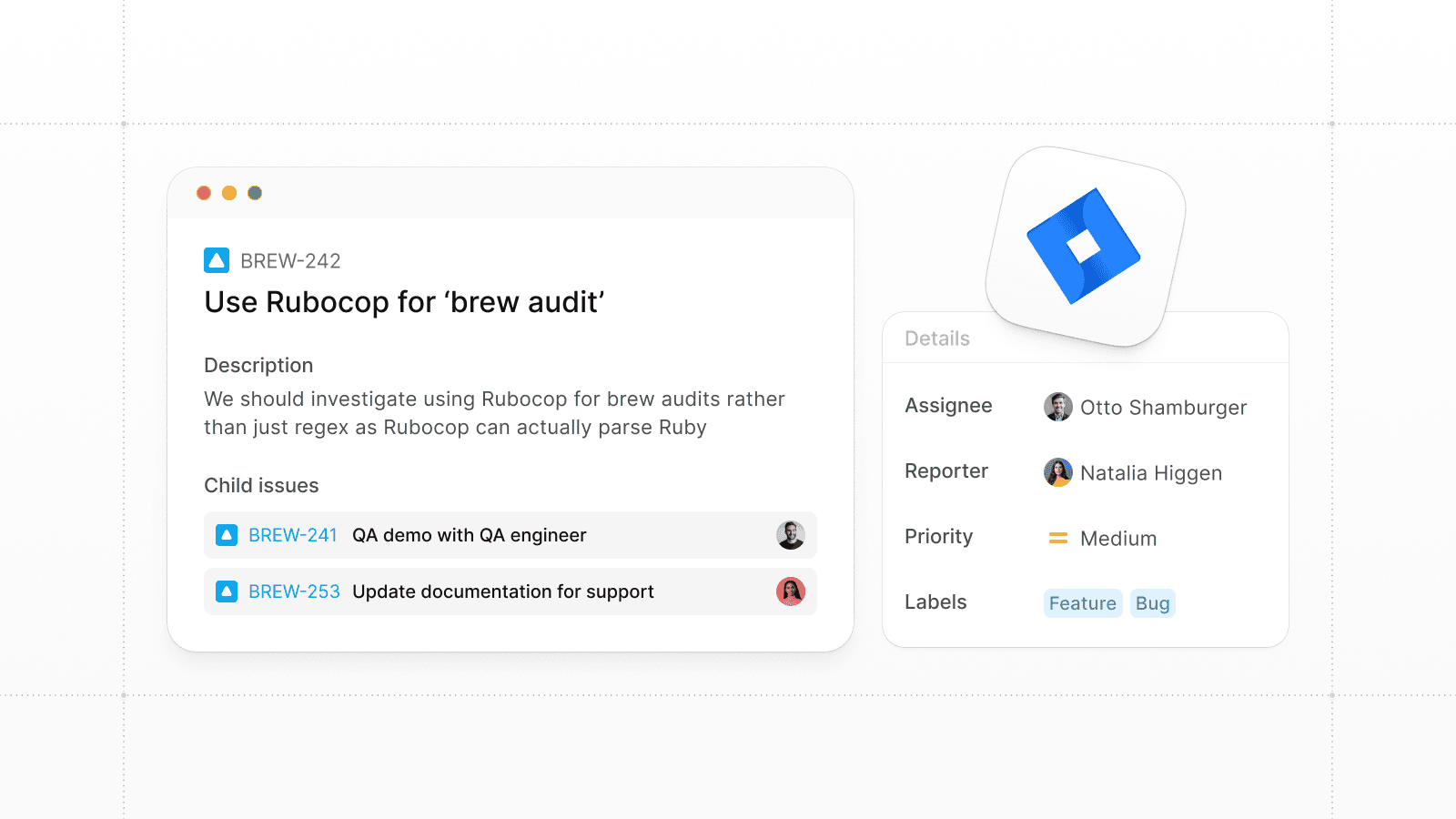
Status and assignee | The current state, who’s working it, who reported it |
Labels | Custom tags for filtering and search |
Two of those are worth more than a table row. In JSM, comments are either customer-visible or internal, so check which before you type; that mistake only goes one direction. And the assignee should be a person rather than a group, because an item assigned to nobody in particular is an item nobody is doing.
Jira Ticket Types (Work Types) and When to Add Your Own
Work types tell Jira what you’re tracking, and they decide which fields you see and which workflow the item follows.
Jira gives you five. Epic for a large body of work, Story for user-facing value sized to a sprint, Task for work that isn’t user-facing, Bug for something broken, and Subtask for a step inside any of those. JSM adds the service side: Service Request for something an employee is entitled to, Incident for something broken right now, Problem for the cause behind repeated incidents, and Change for a planned modification to production.
You can create custom work types, and I don’t think most teams should until they’ve run out of alternatives. Every custom type needs its own workflow, fields and screen configuration, and the maintenance compounds quietly. The teams that stand up 11 work types in month one are the teams calling Jira unmanageable by month six.
What Happens To A Ticket After It’s Raised?
A workflow is the set of statuses a ticket moves through, and the default gives you three: To Do, In Progress, Done. Most real service desks outgrow that inside a quarter.
A more honest lifecycle for a service team runs seven stages. Open, meaning raised and not yet looked at. Triaged, categorized and assigned to a person. In Progress. Waiting for Customer, when you’re blocked on the requester. Waiting for Third Party, when you’re blocked on a vendor. Resolved, meaning fixed and pending confirmation. Then Closed.
The two waiting states are the ones teams skip, and they’re the ones that make your numbers honest, because they pause the SLA clock. Without them, every ticket where you’re waiting on a screenshot counts against your resolution time and your dashboard quietly starts lying to you.
Plenty of mature teams also run more than one end state. Engineering teams often split Done into UAT, Merged, Staged and Deployed, because finished means four different things depending who’s asking. If your definition of finished has stages, model them.
Best Way to Prioritize Jira Tickets
Prioritization only works when everybody agrees what the levels mean, so write the definitions down and put them where people raise requests. Jira ships levels like Blocker and Critical, and custom filters and dashboards organize the queue by priority, assignee or status.
Past the levels themselves, SLAs in JSM keep urgent items moving against a clock. Labels and components sort work by type or department, and breaking a large item into subtasks turns one difficult ticket into a set of actionable ones. Burndown and control charts show you where work is piling up.
Jira Cloud also ships a triage agent now, which sets priority and labels automatically and suggests an assignee the moment an item lands. JSM has a separate Rovo Service Triage agent proposing request type, urgency and priority, so check which one you’re actually looking at.
Jira Ticket Templates and Examples You Can Copy
Most ticket quality problems are description problems, so the cheapest fix is putting a template in the request form as default text. These four cover the bulk of what an internal desk sees.
Bug
What happened: What I expected: Steps to reproduce: 1. 2. 3. Environment (browser / OS / app version): How many people this affects: Screenshot or recording:
Incident
Service affected: Impact (who can’t do what, right now): When it started: Workaround, if any: What we’ve already checked: Who’s currently on it:
Service request
What I need: What I need it for: When I need it by: Approver (if you know it): Anything relevant (team, cost center, existing license):
Access request
System or tool: Access level needed: Reason: Duration (permanent / until a date): Manager:
The difference this makes is easiest to see side by side. “Login is broken” tells an assignee nothing. “Login fails with invalid credentials for SSO users on Safari 18, 4 people affected since 09:15” names the system, the error, the user segment, the browser, the scale and the start time, which is the gap between an hour of back-and-forth and somebody starting work.
One habit worth pushing across the team: write summaries as verb then noun. “Reset MFA for contractor account” rather than “MFA problem”. A queue full of verb-noun summaries is scannable, and a queue full of nouns is a guessing game.
A Filled-In Jira Ticket Example
Here’s what a finished service request looks like once someone has filled every field in properly.
Field | Value |
|---|---|
Key | IT-142 |
Work type | Service request |
Summary | New laptop for incoming Design hire |
Reporter | People Ops coordinator |
Assignee | IT hardware queue |
Priority | Medium |
Status | Waiting for approval |
Description | 14-inch MacBook Pro, shipped to the new hire’s home before their start date. Needs manager approval because it’s over the $2,000 hardware limit. |
Benefits of Jira Service Management
1. Easy integrations. Jira drops into an existing stack without much argument, connecting to Slack, Confluence, Bitbucket, Trello and GitHub.
2. SLA management. JSM tracks resolution times against agreed targets and respects your working calendar. It also pauses the clock on statuses you nominate, which means your metrics reflect your team rather than how long a requester took to send a screenshot.
3. Issue linking. Relationships between items give complex work a structure, with subtasks and dependencies visible under a parent.
4. Roadmap and Kanban views. The roadmap gives you timelines, and the board gives you what’s moving today.
5. Custom workflows. Anything from simple issue tracking to a multi-step approval chain can be modeled, which is rare at this price.
6. AI that’s included rather than sold separately. Rovo is bundled into every paid plan now, with monthly credit allowances of 25 per user on Standard, 70 on Premium and 150 on Enterprise, pooled across the organization. Atlassian’s own documentation says it “is not currently billing for extra usage above your Rovo credit allowance,” with 90 days notice promised before that changes. Any article telling you Jira’s AI is a paid add-on is out of date.
What Jira Service Management Costs in 2026
Read from Atlassian’s pricing page on 28 August 2026, and worth re-checking, because Atlassian revises these regularly.
Plan | Per agent / month | What you get |
|---|---|---|
Free | $0 | 3 agents, unlimited customers |
Standard | $20.00 | Rovo agents, 5,000 Assets objects, branded help center |
Premium | $51.42 | Virtual service agent with 1,000 assisted conversations, advanced incident and change management |
Enterprise | Contact sales | Cross-product analytics, unlimited automation, multi-site |
The number that surprises people is who counts as a licensed seat, because only agents do. Employees raising tickets are free and unlimited, so an internal desk serving 500 people with 6 answering pays for 6 seats. Annual billing takes another 17% off.
Watch the consumption charges rather than the sticker price. Virtual agent conversations past the included 1,000 run $0.30 each, and Assets objects past your allowance start at $0.02 per object per month. At 10 agents you’re looking at $200 a month on Standard against $514.20 on Premium, so do that multiplication before you commit.
Two figures you’ll see quoted elsewhere are worth avoiding. The ITSM market size swings from $17.4B to $57.9B depending which research firm you read. And the percentages everyone repeats for Atlassian’s October 2025 price rise trace back to partner roundups, not to Atlassian.
If you’re still on Server or Data Center, plan the move now. Atlassian ended Server support on 15 February 2024. Data Center is on a wind-down that closes new-customer sales after 30 March 2026, ends expansions after 30 March 2028, and turns products read-only on 28 March 2029.
Atlassian raised Service Collection prices on October 13, 2026, and Jira Service Management sits inside that collection: Standard and Premium went up 7.5%, and Enterprise went up 10%. If you’re comparing quotes, make sure the numbers in front of you were pulled after that date.
Challenges of Jira Service Management
Customization overload. The flexibility that lets you model any process also lets you build something nobody can maintain, because workflows, work types, fields, permissions and automation rules all interact. Teams without a designated Jira admin end up with a configuration nobody understands and nobody wants to touch.
Steep learning curve. JSM is built around ITSM practice, and incident, problem and change management take time to get value from if your team is new to it.
Reporting and JQL. The dashboards and custom reports are deep, and pulling the numbers you want usually means learning JQL first.
The interface keeps moving. Atlassian rebuilt the navigation in 2025 and merged the List and All Work views in July 2026. It removed the old workflow editor that same month, and there’s a redesigned work item view in beta now. Each change is defensible on its own. The cumulative effect is documentation that goes stale faster than you can rewrite it.
It asks non-technical people to work like technical people. Jira’s request model assumes the requester goes to a portal and fills in structured fields, which engineers do happily, because it’s how they already work. An HR generalist answering the same parental leave question 40 times a month won’t, and neither will your office manager or your finance team. They’ll answer in Slack where the question arrived, and your ticketing system will only ever show a fraction of the real support load.
What Makes You The Best Fit For Jira?
Jira fits teams that need flexible, scalable tooling and already live in the Atlassian stack. It fits best when tickets routinely turn into development work, because a support item becoming a bug fix is a link rather than a copy-paste into another system. If you need incident, problem and change management modeled properly for an audit, that’s JSM’s home ground. You’ll also want somebody who can own the configuration, plus requesters who don’t mind a form.
The test I’d apply is where your requests arrive today. If the answer is a mix of email and a portal, JSM will feel like an upgrade. If the answer is Slack or Teams, every time, you’ll spend a year trying to talk people out of what they already do. Still comparing platforms? Our guides to the Freshservice ticketing system and the ServiceNow ticketing system walk through how each one handles tickets.
Ravenna: The Alternative to Jira Ticketing in a Simpler Way
Ravenna starts from the other end, because the Slack conversation is the ticket rather than a step towards one. Somebody asks in a channel. Our agents create the item from that message, resolve it from your documentation when the answer exists, and route it to a person when it doesn’t. Tickets get created from an emoji reaction and categorized automatically, and you still get the record, the ownership and the audit trail.
That fits the teams Jira serves least well; internal IT at a company that runs on Slack or Microsoft Teams, plus HR, finance and operations, where volume is high and most answers already exist in your docs.
If your engineering team is deep in Jira, keep it, because we integrate rather than replace; a request that needs to become engineering work escalates into Jira with its history attached. If you want to see that in your own workspace, we’re happy to show you, or you can poke around the docs first.
Frequently Asked Questions
Is Jira a ticketing system?
Yes, though the ticketing product specifically is Jira Service Management. Plain Jira tracks work items, and plenty of teams adapt it for ticketing. JSM is the one that adds the customer portal, request queues, SLA timers and approvals a service desk needs.
Are Jira tickets the same as issues?
They’re the same object. Atlassian’s official term is work item now, having renamed issue from March 2025, and ticket is the informal name most teams use. The API and JQL still use issue, so you’ll keep seeing all three.
Why does Jira say space instead of project?
Atlassian renamed projects to spaces from late September 2025, to line up terminology with Confluence. Nothing functional changed, and project = X still works in JQL, so your existing filters and automation rules keep running.
Is Jira free?
Jira Service Management has a free plan capped at 3 agents, with unlimited customers. Paid plans start at $20 per agent per month as of August 2026.
How do you close a Jira ticket?
Open it and use the status transition control, then pick Done, Resolved or Closed depending on your workflow. Which transitions you can see depends on your permissions and on the workflow configured for that work type. Plenty of teams keep Resolved and Closed separate, so that Resolved means fixed and Closed means the requester confirmed it.
Can you delete a Jira ticket?
Yes, from the ticket’s action menu, if you have the Delete Issues permission. It’s usually the wrong move, because deleting destroys the audit trail and breaks any links pointing at the item. Closing it as Won’t Do or Duplicate keeps the history, so save deletion for genuine test data and accidental duplicates.
How do you change a ticket’s type?
Edit the work type field on the item, or use bulk change to do several at once. Switching type can change which fields and which workflow apply, so data sitting in fields that don’t exist on the new type can be lost.
How do you create a Jira ticket from Slack?
With Atlassian’s chat integration connected, you react to a Slack message with the ticket emoji, then assign it, comment and change status from the thread. Approvers get a DM and can approve or deny there. In Microsoft Teams the equivalent is the ticket creation message action.