

TL;DR
You can’t delete someone from Slack. You deactivate their account, which signs them out everywhere, removes them from every channel and keeps their messages and files.
On Free, Pro and Business+ you deactivate from Admin, then Workspace settings, then People. On Enterprise, removing someone from a workspace leaves them in the org, so deactivate at the org level.
If your identity provider syncs to Slack through SCIM, deactivate the person there first, then clean up what Slack leaves behind: canvases, lists and the apps they installed.
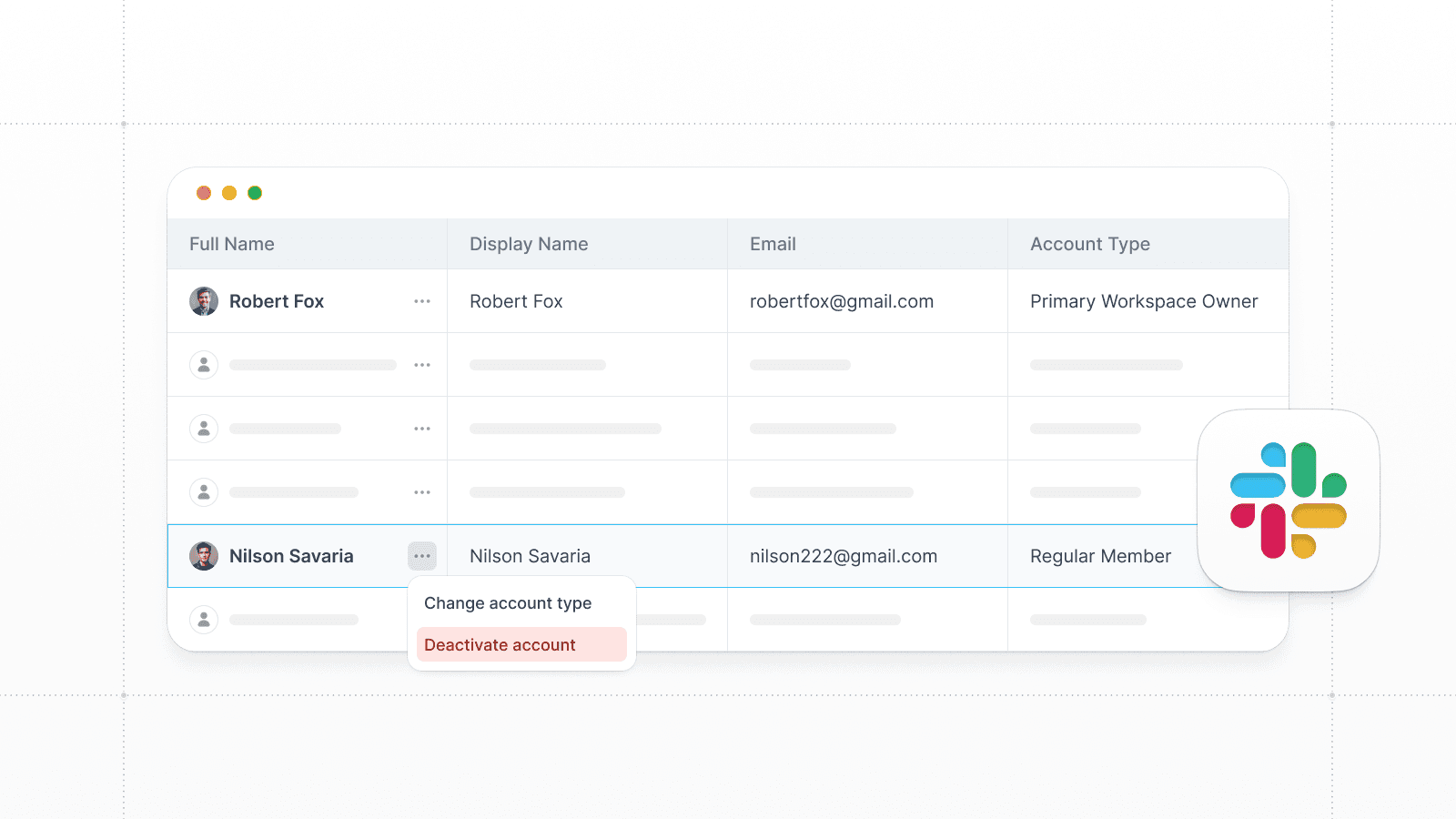
Most people searching for how to remove someone from Slack want a delete button, and Slack doesn’t have one for admins. What it gives you is deactivation, and the difference matters more than it sounds.
A deactivated account loses access to the workspace, gets signed out on every device and is pulled from every channel. Their messages and files stay exactly where they were, their profile stays visible and, according to Slack’s own help center, the person isn’t notified. That’s the right default for offboarding, because the conversation history belongs to the company, not the employee.
The steps depend on your plan, your role and whether an identity provider owns your user list. Here’s the current flow, checked against Slack’s documentation in November 2026.
What does removing someone from Slack actually mean?
There are three different things people mean by “remove,” and Slack treats each one differently:
Removing someone from a channel. They lose that one channel and keep everything else. Any member can do this in a private channel by default.
Removing someone from a workspace. On Enterprise plans this takes them out of one workspace, but they stay in the org and can still sign in.
Deactivating their account. This is the one you want for a departing employee or a contractor whose engagement is over. They lose access entirely and stop being billable, which Slack confirms in its billing status article.
If the goal is “this person should not be able to read anything tomorrow,” channel removal won’t get you there. Deactivate.
How do you remove someone from a Slack workspace?
The order below assumes the worst case: a paid plan with an identity provider in the mix. Skip Step 1 if nobody provisions your Slack users through SCIM.
Step 1: Start in your identity provider if you use SCIM
SCIM provisioning lets your identity provider create and deactivate Slack accounts for you. Slack supports it on Business+ and Enterprise plans, and on Free and Pro if you’ve connected a Salesforce org, with Okta, Microsoft Entra, Google Workspace, OneLogin, PingFederate and PingOne all listed.
If that’s your setup, deactivate or unassign the person in the IdP and let the change flow to Slack. Deactivating them by hand in Slack while the IdP still thinks they’re active is how you end up with two systems that disagree about who works here. Our SCIM vs SSO guide covers why provisioning and sign-in are separate problems.
Step 2: Confirm you have the right role
Slack’s permissions by role are strict here:
Workspace Admins can deactivate members and guests.
Workspace Owners can also deactivate Workspace Admins.
Only the Workspace Primary Owner can deactivate Workspace Owners.
On Enterprise, Org Admins and Org Owners can deactivate members, guests and workspace admins, and members with the Security Admin or Users Admin system role can deactivate anyone except the Org Primary Owner.
Nobody can deactivate a Primary Owner until that person transfers ownership. If your departing employee is the Primary Owner, sort that out before their last day, not after.
Step 3: Deactivate the account on Free, Pro or Business+
From the Slack desktop app:
Click Admin in the sidebar.
Select Workspace settings, then click People.
Click the three dots icon next to the member.
Select Deactivate account.
Guests are deactivated the same way. Slack doesn’t tell the person, so if a contractor is going to wonder why Slack stopped working, tell them yourself.
Step 4: Deactivate at the org level on Enterprise
This is the step that catches Enterprise admins out. At the workspace level, the three dots menu under Manage members only offers Remove from workspace, and the person stays in your org. To actually cut access:
Click your organization name in the sidebar.
Hover over Tools & settings, then select Organization settings.
Click People in the left sidebar, then select Members.
Check the box next to each member you’re deactivating.
Click Deactivate above the list.
You can select several people at once here, which is handy after a reorg and dangerous after a long day. Read the list before you click.
Step 5: Reassign their canvases and lists
Deactivation doesn’t hand someone’s canvases and lists to anyone else. On paid plans, owners and admins can reassign canvas or list ownership from the deactivated member’s menu: open Tools & settings, then Manage members (or Organization settings, People, Members and View Deactivated Members on Enterprise), and transfer ownership to a new owner.
Two limits to know: it moves every eligible canvas and list at once, so you can’t pick individual ones; anything created by guests or external people can’t be transferred.
Step 6: Check the apps and integrations they installed
This is the step that breaks things quietly. When a member is deactivated, Slack revokes their API tokens, and some apps they installed deactivate with them. Bot users, slash commands and incoming webhooks stay active, which is the part people miss.
So the alerting bot your departing engineer set up two years ago might keep running, while the app that posts your daily deploy summary stops overnight. Workspace Owners, or members with permission to manage apps, can open the deactivated apps and integrations list, select an item, click View, and then reinstall or re-enable it. If you reactivate a bot, its token regenerates, so any code that uses the old token needs updating.
How do you remove someone from a Slack channel?
Removing someone from one channel is quicker, and per Slack’s channel removal article it works like this on desktop:
Open the channel.
Click the cluster of profile pictures in the top right.
Hover over the person, click the three dots icon and select Remove from channel.
Click Remove to confirm.
On mobile, type /remove @member in the channel and send it. By default owners and admins can remove people from public channels and members can remove people from private ones, though owners can restrict that. You can’t remove anyone from #general (or #all-yourcompany), and Slack does notify the person.
What happens to their messages, files and apps?
Deactivation is designed to keep the record intact:
Messages and files aren’t deleted.
The person is removed from all channels and signed out on all devices.
Full name, display name and profile picture are kept.
API tokens are revoked, and some of their apps are disabled.
Their seat stops counting toward your bill until someone reactivates them.
If you need the profile itself gone, a Primary Owner can delete profile information after deactivation. That removes the name, email, photo and profile fields and shows them as @deactivateduser, while their messages, canvases and files stay. It can’t be undone, and Slack recommends against doing it for routine admin reasons, so save it for actual privacy requests.
Where does manual Slack offboarding go wrong?
Deactivating one account is quick; the trouble is that Slack is rarely the only system, and almost never the first one anyone thinks of on someone’s last day.
I believe the real risk isn’t the admin who doesn’t know where the button is. It’s the gap between HR marking someone as gone and anyone in IT hearing about it, plus the apps, canvases and bot tokens that outlive the account because nobody owns that checklist. You’ve probably seen a former contractor’s name still sitting in a channel member list months after their project ended, and that’s usually a process problem, not a Slack problem.
The fix is to make Slack one step in an offboarding workflow that starts from the HR system and ends with someone confirming every step happened.
How does Ravenna help with Slack offboarding?
Ravenna is a Slack and Teams-native service desk, and it doesn’t deactivate accounts itself: your identity provider or your Slack admin does that. What Ravenna does is make sure it happens on time and in the right order. A departure can trigger an offboarding workflow that routes the deactivation to the right admin or kicks it off in your IdP, gates the risky steps behind an approval, creates the follow-up tasks for canvases and apps, and logs who did what for your next audit. If you want to see what that looks like against your own offboarding checklist, we’re happy to walk you through it.
Frequently Asked Questions
How do you remove someone from a Slack channel?
Open the channel, click the profile pictures in the top right, hover over the person, click the three dots icon and select Remove from channel, then confirm. On mobile, type /remove @member in the channel. You can’t remove anyone from #general, and Slack notifies the person when they’re removed.
Can you remove someone from a Slack group chat?
Slack’s help center documents adding people to a group DM but not removing them. Adding people moves the history you choose to share into a new group DM. If someone shouldn’t see a conversation going forward, start a new group DM without them, or move the conversation into a private channel where members can be removed.
How do you delete a Slack account?
Slack doesn’t offer a delete option for accounts. Admins deactivate the account, and members can deactivate their own from account settings unless their Enterprise workspace requires membership through an identity provider. After deactivation, a Primary Owner can delete the person’s profile information, but their messages and files stay in Slack.
How do you remove someone from Slack on mobile?
On mobile you can remove someone from a channel by typing /remove @member in that channel. Slack’s help center only documents account deactivation from the desktop app, through Admin, Workspace settings and People on Free, Pro and Business+, or Organization settings on Enterprise.