

Your team lives in Slack, but answers are buried in threads and repeat questions never stop. Portals and long forms are no longer efficient. A Notion + Slack integration fixes that when it’s set up for internal support. You can connect Notion to Slack in minutes, capture solved threads into structured pages with a Notion link, and auto-answer FAQs directly in chat so requests move faster with the right functionality and accountability
Read on to find out how to connect Notion to Slack, then how internal teams use it to save solved Slack threads to Notion and answer everyday questions in Slack.
TLDR:
Capture solutions from Slack conversations into Notion as structured docs with a Notion link for future reference.
Use automations or Slack-first help desks to respond in real-time, assign Notion tasks, and maintain clear permissions in every thread.
Streamline internal support workflows by keeping answers, ownership, and updates in one place.
Quick Start: How to Connect Notion and Slack
To start, connect Notion and Slack so updates in your Notion databases can be sent directly to Slack channels. Notifications help your team see changes in real-time, track updates to tasks or knowledge base entries, and prevent requests from getting lost in threads. Once connected, you can automate posts, capture solved threads, and eventually build richer agentic workflows for IT, HR, or operations. Here’s how to set up the integration:
Connect Notion to Slack
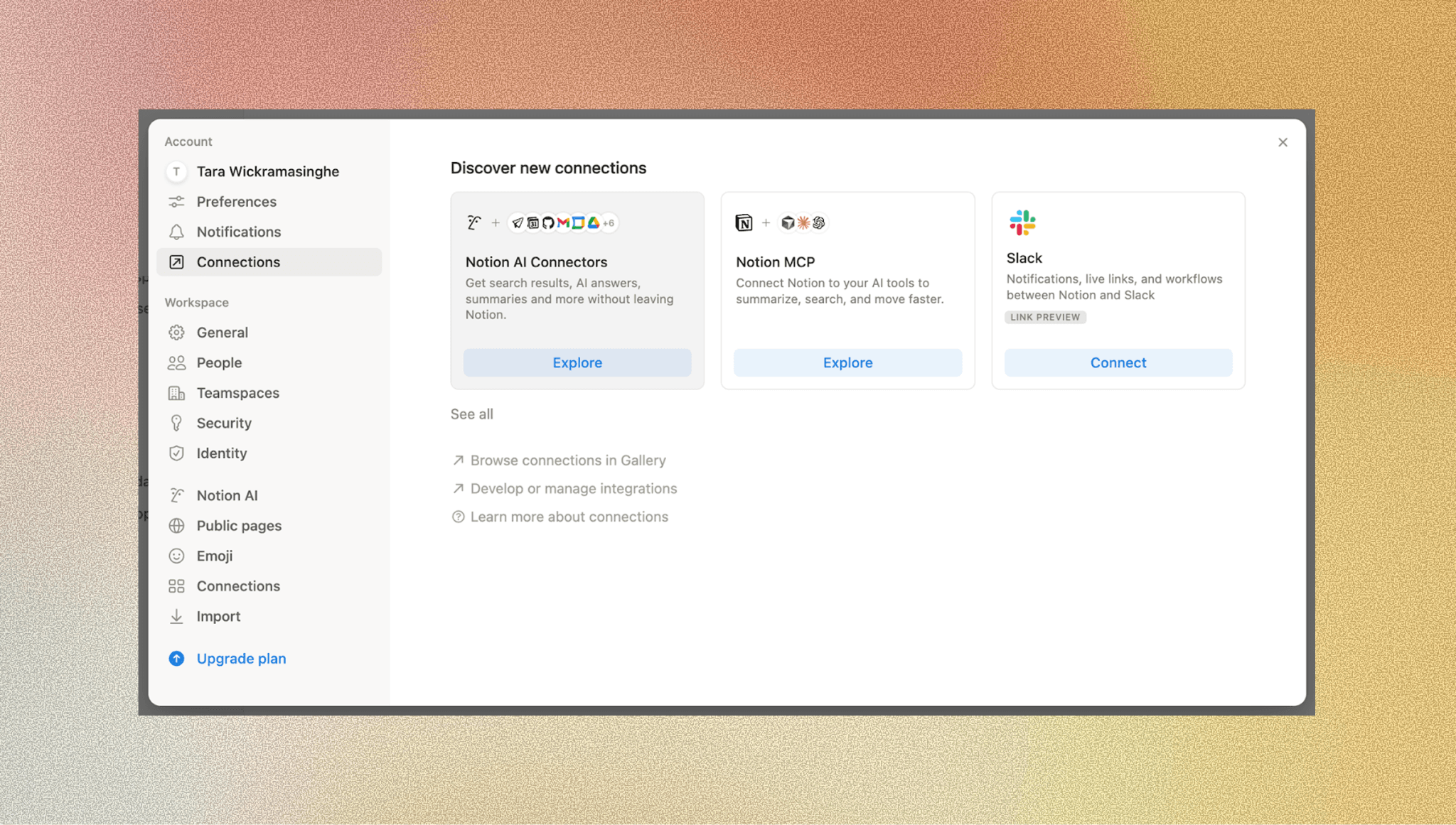
In Notion, open Settings & members.
Select My connections, choose Slack, and click Connect.
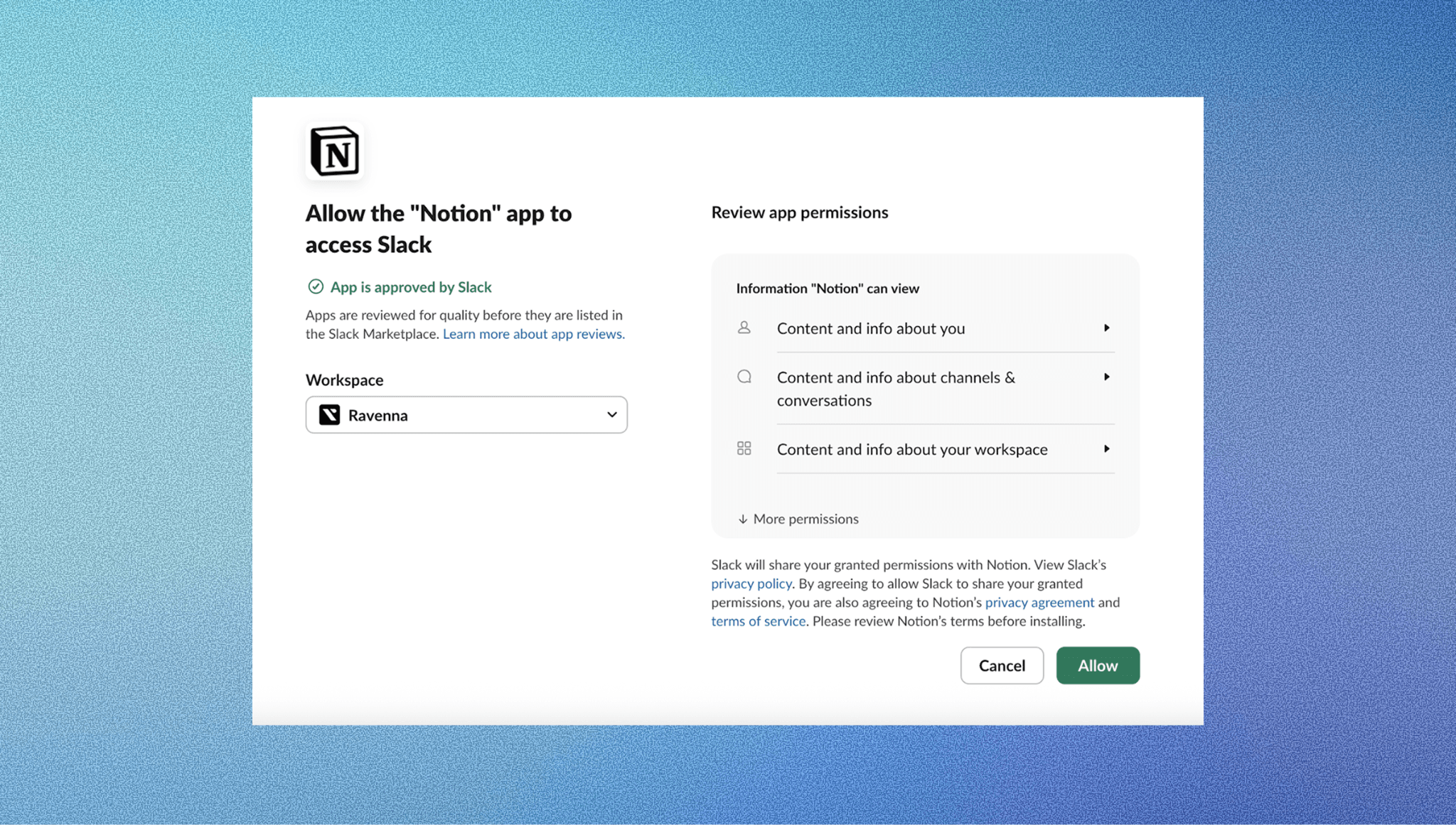
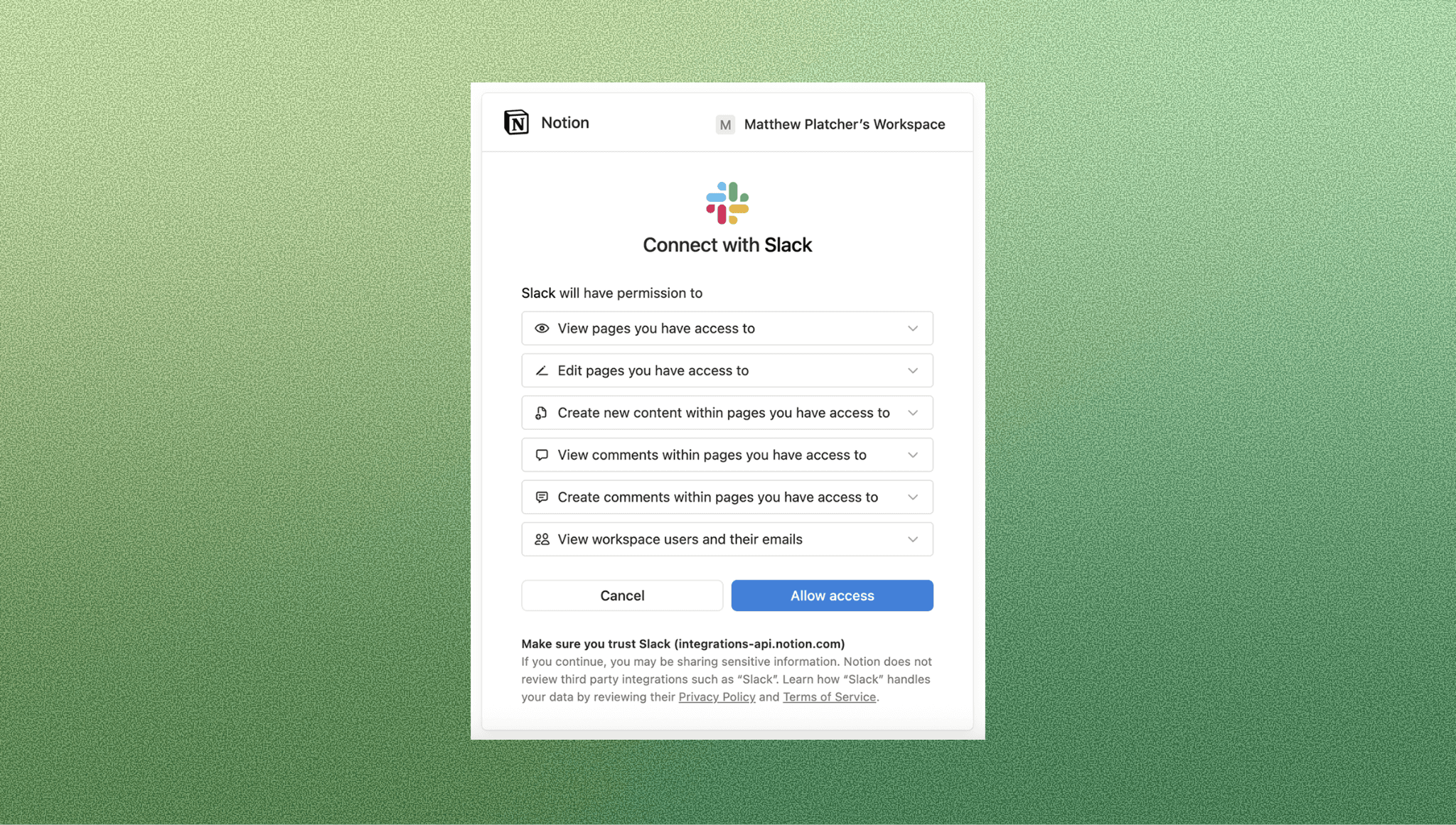
Authorize the Slack workspace.
Pick the channels or DMs for updates. (You’ll be asked to choose the Slack channels or DMs to post updates to. This screen varies by workspace.)
The images below guide you through the steps to connecting Notion to Slack.
Turn on Slack notifications from a Notion database
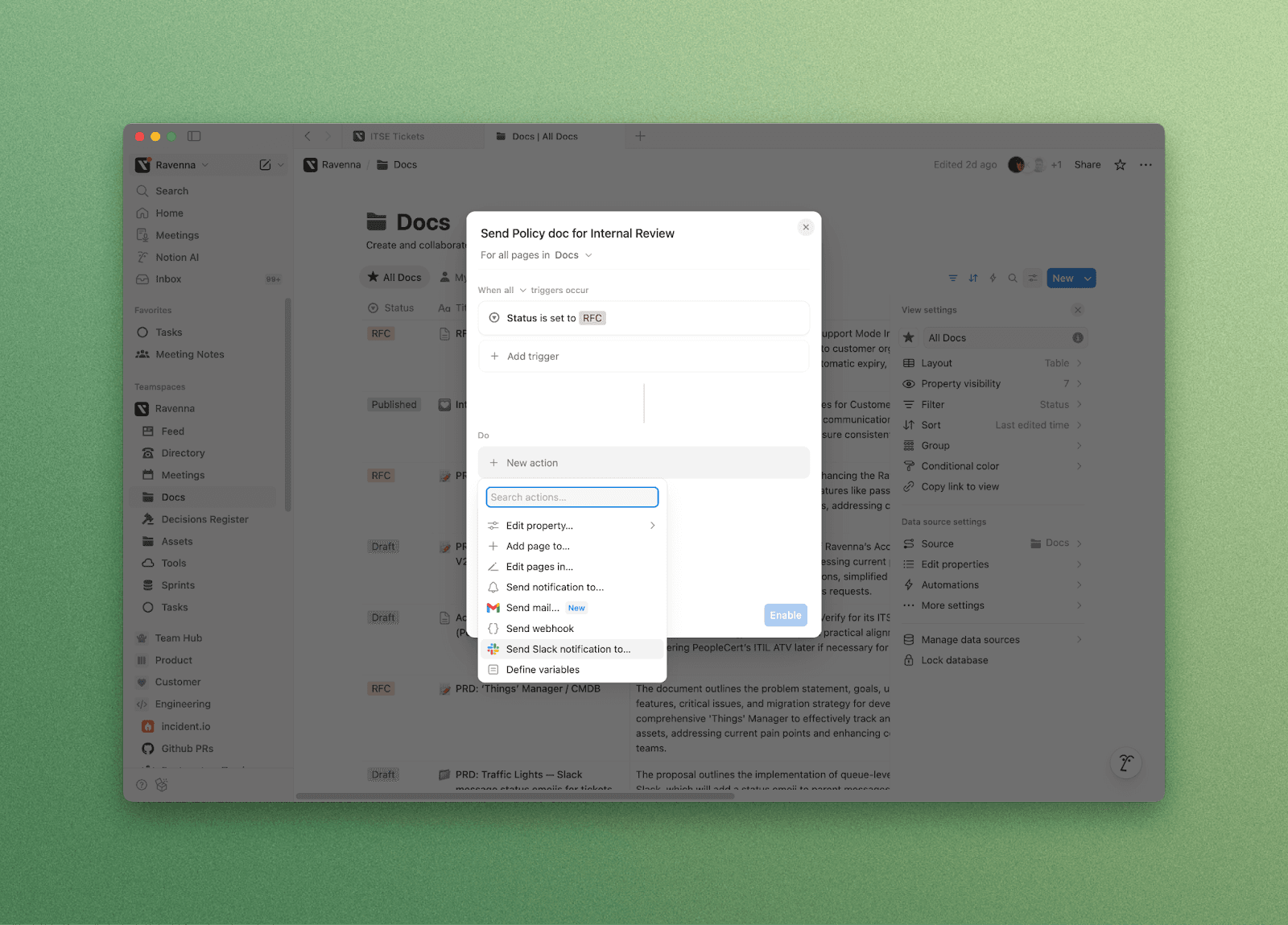
Open your Notion database, click the ••• menu, then Automations.
Add trigger (e.g., Status or Assignee changes).
Add action, Slack notification, choose the channel/DM, and name it. (Your exact Slack notification action may look different based on permissions and plan.)
Save changes in Notion and post to Slack automatically.
This image shows how to turn Slack notifications from a Notion database.
Optional: Notion AI Connector for Slack
Who can connect: Notion workspace owner/admin and Slack workspace owner.
What it enables: Ask Notion AI to search across Slack messages you can access, summarize threads, and bring context back to Notion.
When to use: Fast discovery across channels before you formalize an article.
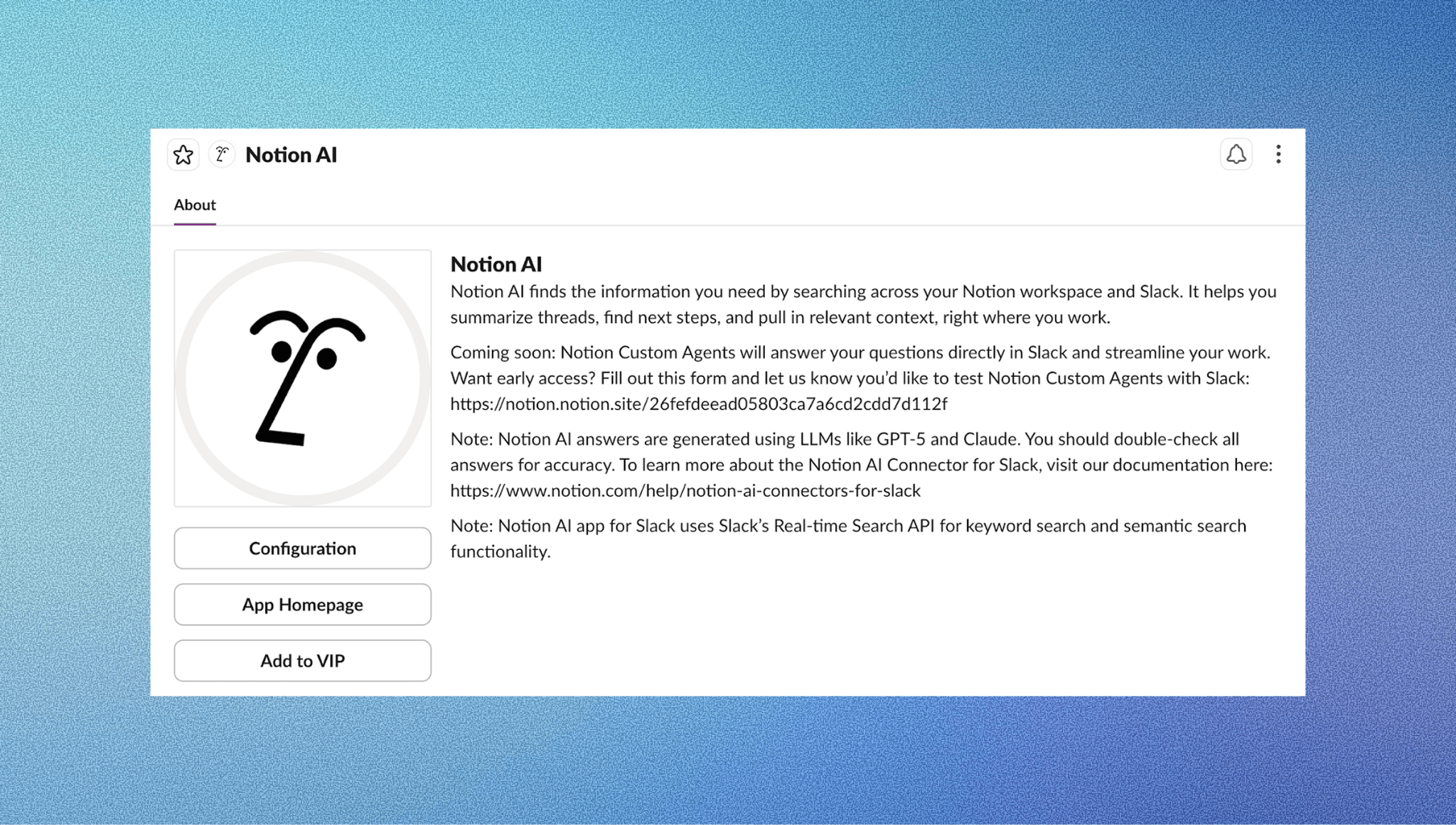
With the Notion–Slack connection in place, you’ve covered the basics. Now updates flow where conversations already happen. The next step is to make that connection smarter. For example, after a thread is solved in Slack, you can capture it as a Notion page by pinning the thread, using a shortcut or integration to draft a page, tagging key requests, and applying a consistent template for IT, HR, or ops workflows. This ensures that valuable knowledge is structured, searchable, and reusable across the team.
Workspace-level Slack configuration in Notion is only available on paid plans.
Ship it: 3 things to do next
Post a test update from a Notion database to your #it-help channel.
Document which Notion databases are linked to which Slack channels.
Create a private pilot channel for sensitive or limited-access notifications.
When you’re ready, you can layer agentic automation on top of this setup, so every request, update, and resolution moves seamlessly between Notion and Slack.
Save Useful Slack Threads to Notion
Connecting Slack and Notion is only the first step. Real impact comes when you turn solved Slack threads into reusable Notion articles. Capturing and structuring answers transforms scattered Slack messages into a searchable internal knowledge base that powers self-serve support and reduces repeat tickets.
When to capture a thread
Capture a thread when it’s clearly worth preserving. Common signals include:
The same question appears 2+ times a week.
A thread gets “✅ solved” reactions.
5+ replies converge on a clear fix.
It’s a policy or repeatable setup (VPN, MFA, time off).
It’s a quick post-incident summary worth preserving.
Recommended Notion Knowledge Base Schema
Structure matters. Use a consistent schema to keep your articles clean and searchable:
Title
Problem (one-line summary)
Steps (numbered)
Systems (Okta, Jira, Google Workspace, etc.)
Owner
Audience (IT, HR, Finance)
Last reviewed (date)
Tags
Source Slack link
Confidence (Low/Med/High)
60-second capture process
Pin the solved Slack thread. (The standard Slack option in the ‘More actions’ menu.)
Use the native Notion‑Slack message action (e.g., /notion create command) to send a Slack message into a Notion database and include the Slack link.
If you need more control (e.g., thread‑level capture, custom tags, automatic properties), then use an automation tool (Zapier/Make or Slack Workflow Builder) to watch for solved threads or reactions and generate a Notion record with the required schema.
The owner cleans up the Steps, sets the Last reviewed date, and publishes.
The images below guide on how to send a Slack DM directly to Notion.
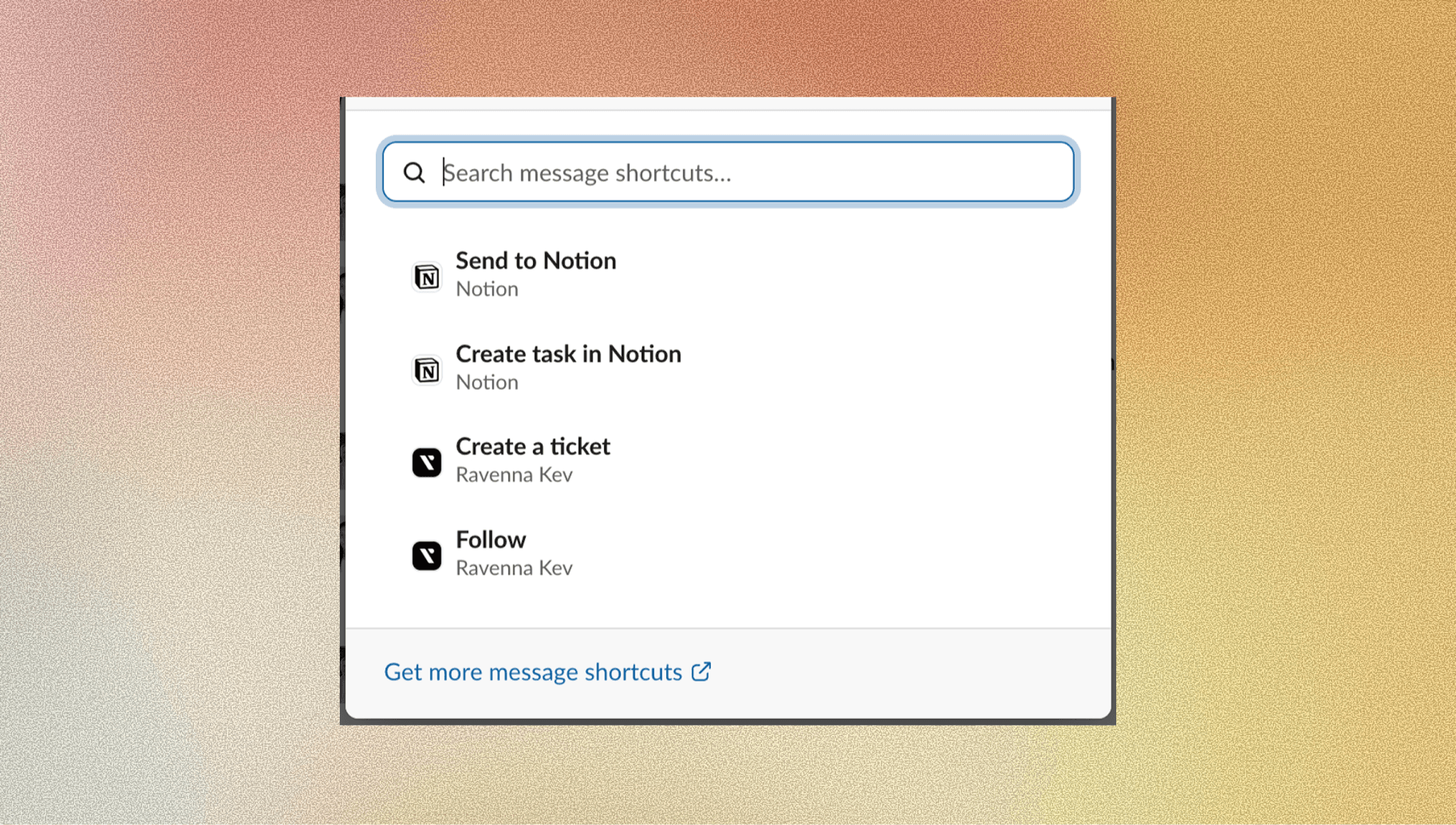
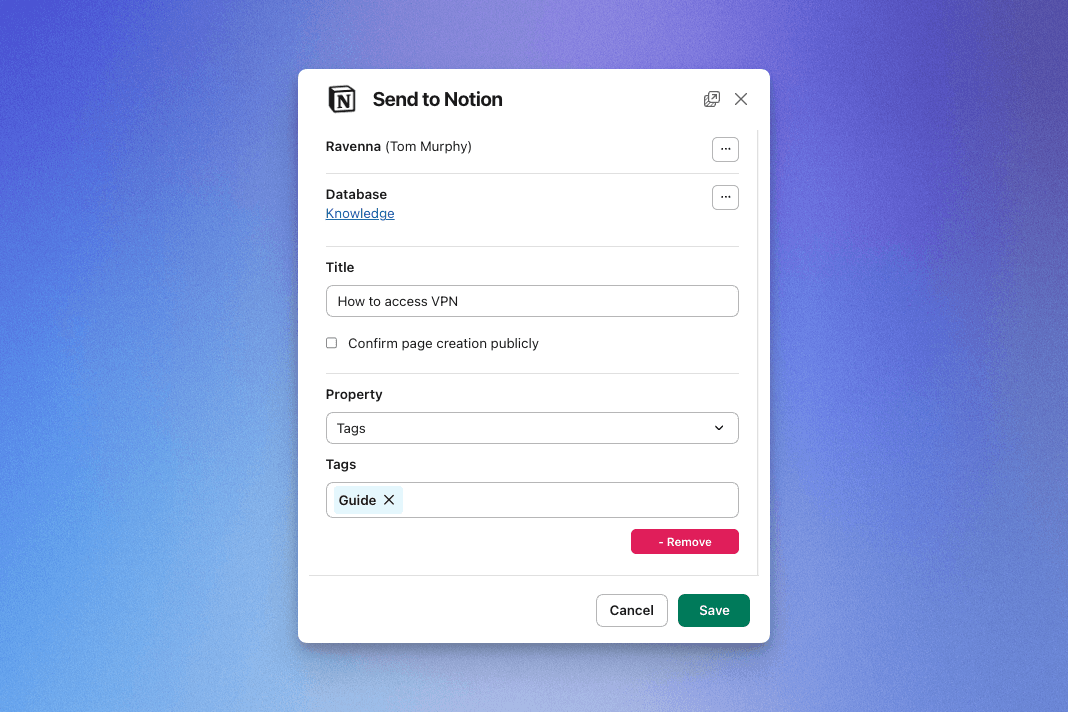
Tip: A Slack-native help desk or automation tool like Ravenna can capture messages to Notion in one click, preserving full context and conversation history.
A steady rhythm of captures turns Slack into a reliable source for your internal knowledge base. Once your articles live in Notion, you can auto-answer FAQs inside Slack, reduce repetitive questions, and free up IT and ops teams for higher-impact work.
Ship it: 3 things to do next
Create an “IT Knowledge” database in Notion using the schema above.
Convert two recently solved threads into structured articles.
Share the capture process in #it-help so the team can follow it consistently.
Next up: connect your Notion database back to Slack and enable auto-responses for recurring questions, so answers find people before new tickets do.
Auto-Answering FAQs in Slack from Notion
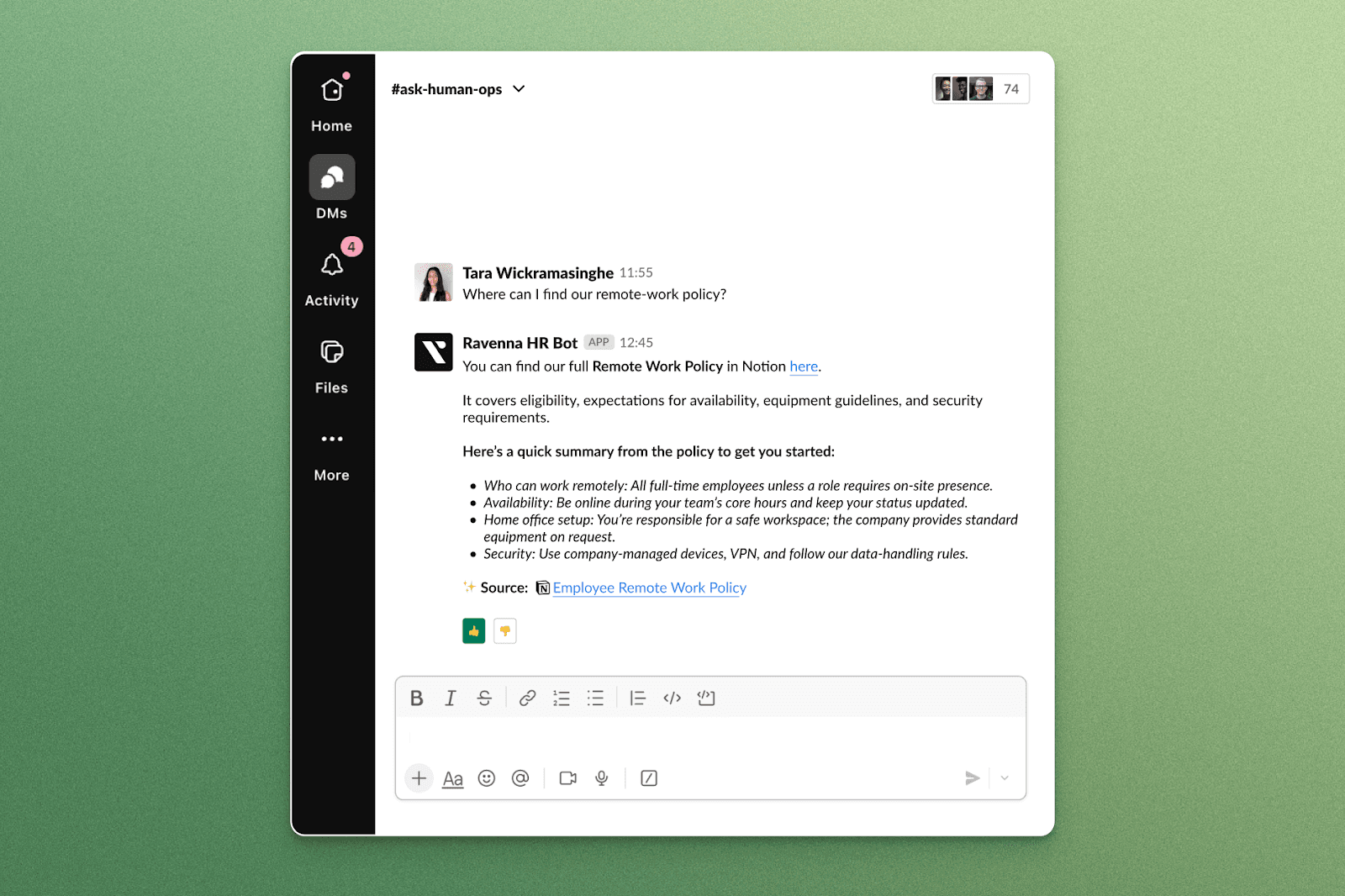
Once your Notion articles are published, the next step is bringing those answers directly to people without leaving Slack. By connecting Notion and Slack through automations or an agentic help desk, you can automatically surface the right knowledge, reduce repeat questions, and save time on routine requests.
There are three practical ways to set this up, depending on how your stack is built:
Path 1: Notion AI Connector for Slack
Ask questions across Slack channels you can access, summarize long threads, and reference the right Notion page for context.
Plan & cost note: This is available only on Notion Business or Enterprise. If you’re on Free/Plus, this typically means an upgrade (additional cost). Confirm pricing before rollout.
Best for: Fast discovery and contextual answers.
Keep in mind: It’s useful for retrieval but not a full workflow automation tool.
This image shows how Notion can auto-answer FAQs on Slack.
Path 2: Zapier/Make
Set up lightweight automations between Slack and Notion.
Trigger: Create a new Notion record when a Slack message is starred or reacted to with 📌.
Action: Post Notion database updates back to a specific Slack channel.
Filters: Add conditions so only relevant updates trigger notifications.
Best for: Simple, no-code syncs between Slack and Notion.
Path 3: Slack-first help desk
Go beyond triggers and respond in-thread with the right Notion article to keep the full context of the conversation.
Reply in-thread with a Notion page preview.
Ask for missing info (e.g., app, manager, date) without switching tools.
Keep approvals, actions, and summaries in the same Slack thread.
Best for: End-to-end request management and automated knowledge delivery.
Metric to Track
Self-serve or deflection rate is the percentage of requests solved through knowledge or automation without human intervention. The easier it is to find and use your Notion content inside Slack, the higher this number climbs.
With a working answer loop, your Notion-Slack integration becomes more than a convenience. It actively saves hours every week and improves response consistency across teams.
Ship it: 3 things to do next
Wire one Zap:
⭐️ → create Notion KB draft.Reply to a common Slack question with your new Notion article link.
Add “Deflection %” and “Time-to-answer” to your team dashboard to measure impact.
Next step: connect these loops into an agentic workflow where requests, resolutions, and reviews all happen in one place, with Slack as the command center.
Find & Fix Knowledge Gaps
Even the best self-serve systems lose effectiveness if your knowledge base falls behind. To keep answers accurate and adoption growing, you need a simple loop to track what’s missing, directly from your Slack activity.
Start with a lightweight Notion board to capture three types of signals: unanswered questions, outdated articles, and repeated requests that never got documented.
What to log
Unanswered questions: Threads with “any update?” follow-ups or unresolved replies.
Searches with no result: Terms your team looks for in Notion but can’t find.
Stale pages: Articles not reviewed or updated in the last 90 days.
Repeat tickets: Common requests where no Notion article exists yet.
A compact Notion “Gaps” board
Keep it minimal and actionable.
Fields: Status (Open/Planned/Shipped), Tag (IT/HR/Finance), Impact (High/Medium/Low), Source Slack link, Owner, and Due date.
Purpose: Turn scattered signals from Slack into a prioritized list of fixes your team can actually ship.
Weekly Practices for Consistency
Review the top five gaps every Monday.
Ship one improvement per week.
Post the updated link in #it-help or your support channel to close the loop.
You don’t need heavy analytics to keep your Notion–Slack setup healthy. This steady rhythm of identifying, fixing, and sharing updates maintains trust in your knowledge base and steadily increases self-serve resolution rates.
Ship it: 3 things to do next
Create the “Gaps” board with the fields above.
Add three unanswered or repeat questions from last week’s Slack threads.
Assign one improvement and ship it.
Next up: once your gap-tracking loop is in motion, you can start layering agentic workflow automation where AI agents help detect gaps, suggest article updates, and even draft fixes before your review.
Keep Answers Trusted
A growing knowledge base only works if people trust it. You don’t need enterprise-level paperwork to maintain credibility, just lightweight guardrails around access, ownership, and review. These habits make your Notion-Slack integration both auditable and easy to scale.
Practical guardrails
Slack privacy: Route HR or Finance questions to private channels or triage DMs to protect sensitive data.
Notion roles: Assign Editors as article Owners, and all other team members can view or comment.
Last reviewed: Add a date field and schedule monthly topic reviews to keep articles fresh.
Naming convention: Use consistent prefixes like
KB-IT-VPN-ResetorKB-HR-Time-Offfor easy filtering.Traceability: Include a Source Slack link on every page so anyone can trace where the answer came from.
Clear ownership, defined roles, and a regular review cadence keep your internal knowledge base accurate and compliant without slowing your team down.
Ship it: 3 things to do next
Add Owner and Last reviewed fields to your Notion KB database.
Move sensitive workflows to private Slack channels.
Post your naming pattern in #it-help so everyone follows it.
When trust is built into every article, your Notion-Slack knowledge base becomes a true source of record. With governance in place, you can scale knowledge sharing confidently and prepare for deeper automation next.
Tools Comparison: Which Path Fits Your Team?
There’s no single “right” tool for connecting Notion and Slack. It depends on your workflow maturity and the level of automation you need. The goal is to start simple and layer capability as your team scales from notifications to full agentic workflow automation.
Use case | Built-in Notion + Slack | Notion AI Connector for Slack | Zapier/Make | Slack-first help desk (e.g., Ravenna) |
Quick notifications | ✅ Database → Slack notifications | - | ✅ | ✅ |
Send Slack message to Notion as a record | Manual or template | - | ✅ | ✅ one-click capture |
Ask/answer in Slack | Basic via links | Search/ask across channels/DM | Limited | Answers from trusted KB, collects details |
Approvals and actions in thread | Manual | - | Possible with multiple steps | ✅ Approvals + audit |
Best for | Simple alerts | Discovery/search | Custom flows | Internal support loops |
How to Choose
If you just need alerts: Use built-in Notion - Slack notifications.
If your focus is discovery and search, add the Notion AI Connector for Slack.
If you want cross-app automation: Use Zapier or Make for low-code workflows.
If you want in-thread support, actions, and auditability: Go with a Slack-first help desk like Ravenna.
Ship it: 3 things to do next
Pick a path for the next 14 days.
Test with a single channel and one workflow (e.g., access requests or FAQs).
Measure deflection, time-to-answer, and manual touches to gauge impact.
Your Notion-Slack integration doesn’t have to be complex from day one. The right setup depends on how your team works today and how much automation you’re ready to adopt. Start where you are, measure the results, and evolve toward agentic workflow automation that scales naturally with your operations.
Final Thoughts
The fastest way to reduce repeat questions is to bring answers where people already work — inside Slack. A well-set-up Notion Slack integration makes that possible by connecting Notion to Slack, capturing solved threads as reusable knowledge, and automating replies to common questions. It keeps your team focused on solving new issues instead of re-answering old ones.
Start small: connect Notion and Slack, capture a few high-value threads, and automate simple responses. As these loops strengthen, your setup naturally evolves toward agentic workflow automation where requests, updates, and knowledge all move seamlessly between Notion and Slack, helping IT and ops teams work faster with less manual effort.
FAQs
Does Notion integrate with Slack?
Yes. In Notion, open Settings & members → My connections, select Slack, connect your workspace, and configure Slack notifications from Notion at the database level.
How do I connect Notion and Slack?
Use the steps above to authorize Slack, pick channels/DMs, and add a database Automation → Slack notification for updates.
Can I send a Slack message to a Notion database?
Yes. Use Zapier/Make to turn a starred message into a Notion record, or use a Slack-first help desk to capture with one click.
What is the Notion AI Connector for Slack?
An optional connector that lets qualified admins enable AI-powered search and summaries across channels and DMs you can access, then reference results in Notion.
Can Slack show Notion updates?
Yes. Configure Slack notifications from Notion to post database changes to a channel or DM.